
Shopify integration
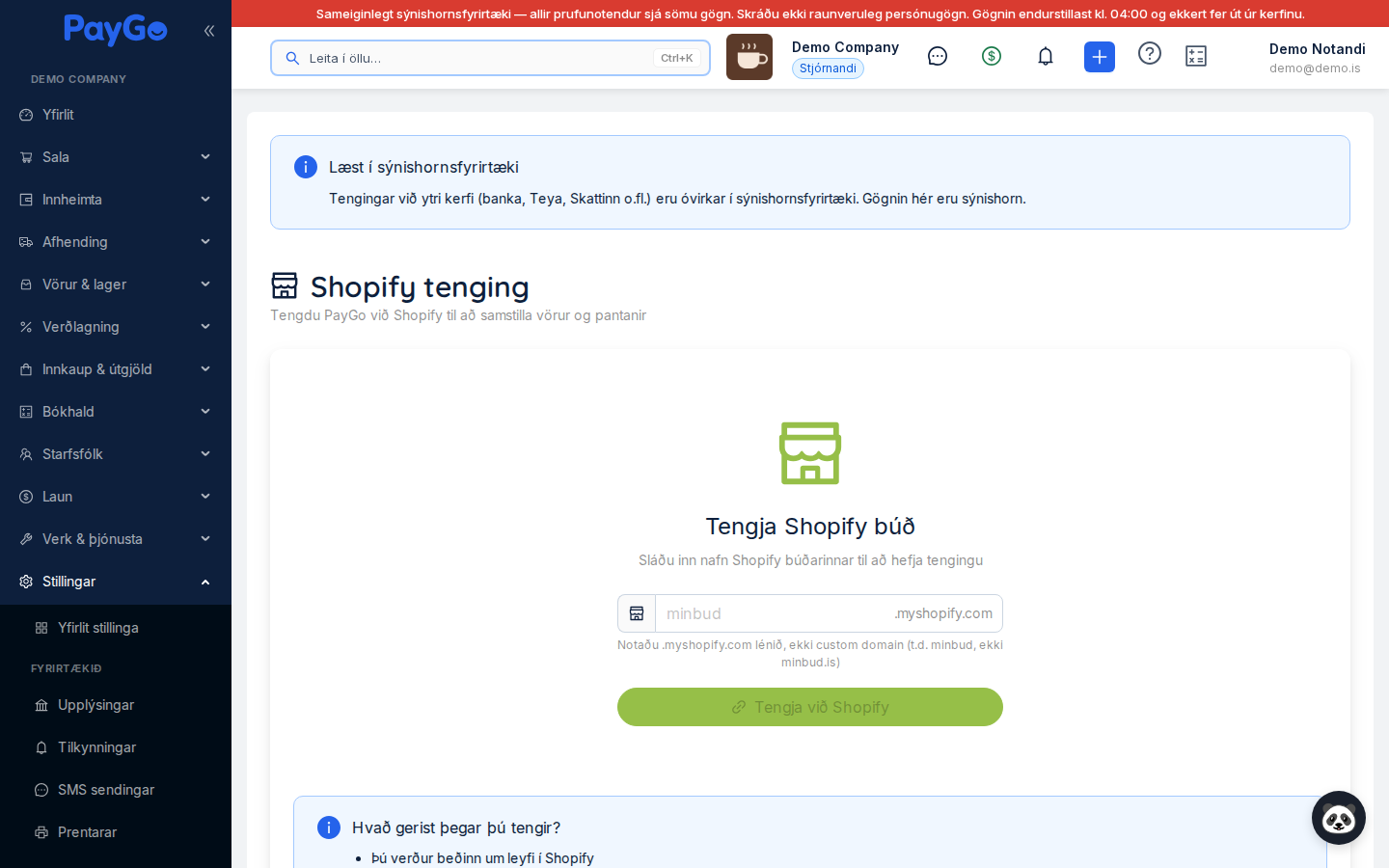
The Shopify integration connects PayGo to your Shopify store. Syncing runs in two directions: price, stock level and visibility go from PayGo to Shopify, while orders paid in Shopify come into PayGo and are automatically created as sales orders, complete with customer, lines, shipping charge, deposit and journal entry. You find the settings under Settings → Online store → Shopify in the sidebar (path /dashboard/settings/shopify). The menu item is simply called "Shopify", even though the heading of the page itself is "Shopify connection".
At the top of the page is the heading "Shopify connection" with the subtitle "Connect PayGo to Shopify to sync products and orders". What the page shows depends on whether a store is connected: if there is no connection you see a connection form, but if a connection exists you see status cards, sync settings, product pairing, payment method mapping and a list of recent orders.
To use the page you need the permission settings:read (to view) and settings:write (to connect, change settings, map payment methods and disconnect). The order list requires orders:read, forcing a sync requires orders:write, and product actions such as "Fetch descriptions and images" and product pairing require inventory:write.
Step 1 — Connect a Shopify store
When there is no connection, a card appears with the green Shopify icon and the heading "Connect a Shopify store" together with the subtitle "Enter the name of the Shopify store to start connecting". There you enter the subdomain of the store in the field (the placeholder text is "myshop") and PayGo automatically adds the suffix .myshopify.com, which is shown on the right-hand side of the field.
Type only the name part, e.g. "myshop". PayGo cleans up the input automatically: it removes https:// or http://, strips a trailing slash and makes sure the domain ends in .myshopify.com. If you type the full domain (e.g. myshop.myshopify.com), that works too.
Below the field is the hint "Use the .myshopify.com domain, not a custom domain (e.g. myshop, not myshop.com)". If you enter your own domain (e.g. myshop.com), only the first part is used and .myshopify.com is appended to it.
The green "Connect to Shopify" button (or Enter in the field) starts the OAuth process and sends you over to Shopify. If the field is empty, the message "Please enter a Shopify store" appears.
Step 2 — Grant Shopify permission (OAuth)
When you click "Connect to Shopify" you are sent over to Shopify, where you are asked to grant PayGo permission. PayGo requests read and write access to products, orders and inventory in the store. Once permission is granted, Shopify sends you back to PayGo and the connection is saved (the access token is stored encrypted in the database). Finish granting permission within 10 minutes; after that the request expires and you have to start again.
Shopify shows which access PayGo is requesting. Click to install / grant access.
When you return, the green message "Shopify connection successful!" appears and the page reloads with the status cards for the store.
If the connection fails, an error dialog with the title "Connection error" and an explanation appears. Try again and make sure you enter the correct .myshopify.com domain.
Connection status
When a store is connected you see the "Connected to Shopify" card with a green tick icon. In the top right corner is a label (Tag) showing "Active" (green) or "Inactive" (grey), depending on whether the connection is enabled. The card contains an information table (Descriptions) with the following fields.
| Field | Description |
|---|---|
| Store | Name of the store as a link to the Shopify admin (opens https://<store>.myshopify.com/admin in a new tab). |
| Connected | Date and time when the connection was created, e.g. "14 Jul 2026 09:15". |
| Last sync | When PayGo last synced with Shopify. Shows "Never" if no sync has taken place yet. |
At the bottom of the card is the red "Disconnect" button; see the section on disconnecting below. If the PayGo app is removed in the Shopify admin, PayGo automatically sets the connection to "Inactive".
Sync settings
The "Sync settings" card contains three switches (Switch) that control which data is synced automatically. Each switch shows "On" or "Off" and is saved immediately when it is changed (the message "Settings saved" appears).
| Setting | What it does |
|---|---|
| Product sync | From PayGo to Shopify. When a product is marked "Visible in online store" it is set to "active" in Shopify; when the mark is removed it is set to "draft" (hidden, not deleted). If the product is not yet paired with a Shopify product, PayGo creates it in Shopify as a "draft" with name, description, price including VAT and SKU, and pairs it automatically. When the price of a paired product is changed in PayGo (on the product or through a price change), the new price is sent. |
| Order sync | From Shopify to PayGo. Fetches paid orders and creates sales orders in PayGo. When this is switched on, the "Latest Shopify orders" card also appears. |
| Stock sync | From PayGo to Shopify. Sends the total stock level of the product in PayGo (a whole number, rounded down) to the first active location of the store in Shopify, when the product is saved in PayGo and when it is created in Shopify. |
At the bottom of the page is a separate "Connection active" card with a switch ("Active" / "Inactive"). If the connection is set to inactive, all syncing stops: neither products nor orders are synced until it is switched on again. While the connection is inactive the page loads neither the payment method mappings nor the order list, so the "Payment methods" table looks empty even though mappings are saved.
Product pairing
The "Product pairing" card explains that products must be paired between PayGo and Shopify to keep them in sync. The "Open product pairing" button goes to the "Shopify product pairing" page. It shows the figures "Paired products", "Unpaired PayGo" and "Unpaired Shopify", the "Auto-pair by SKU" button (pairs unpaired PayGo products with Shopify variants that have the same SKU, ignoring upper and lower case), and lists where you pick a Shopify product by hand ("Select a Shopify product…"). A paired product has the buttons "Sync price", "Sync stock" and "Disconnect" (removes only the pairing).
Fetch descriptions and images from Shopify
The "Fetch descriptions and images from Shopify" card works in the opposite direction to the normal sync: it fetches product descriptions (body_html) and images FROM Shopify INTO PayGo. This updates the webDescription and webImages fields on all products linked to Shopify. It is a manual action that you run yourself.
The blue button with the sync icon.
A popup asks "Fetch descriptions and images?" with the warning "This will overwrite the current descriptions and images in PayGo with data from Shopify." Click "Yes, fetch" (or "Cancel").
When the run finishes, a message such as "Updated: 12 products with descriptions and images from Shopify" appears. If there were errors, a "Sync finished with errors" dialog appears with the number updated, the number skipped (no data in Shopify) and the first errors.
Payment method mapping
The "Payment methods" card controls which account payments from Shopify are posted to in PayGo. At the top is the information box "Payment method mapping" with the explanation "Link Shopify payment gateways to PayGo payment methods so payments are posted correctly to the accounts." When an order arrives, its payment gateway in Shopify (e.g. shopify_payments, netgiro, paypal) is looked up in the mapping, and the matching PayGo payment method is used for the deposit and the journal entry; the entry goes to the GL account of the payment method.
Above the table is the "Default payment method (fallback)" field with the explanation "Used if no payment gateway matches a mapping". Choose it from the "Select default payment method" dropdown, which shows the name and code of each payment method and is saved immediately ("Default payment method saved").
The mapping table shows these columns:
| Column | Description |
|---|---|
| Shopify payment gateway | The payment gateway in Shopify, shown with a readable name (e.g. "Shopify Payments (card)", "Netgíró", "PayPal"). |
| PayGo payment method | The matching payment method in PayGo, shown with a blue code label and name. |
| Status | Label "Active" (green) or "Inactive" (grey) for the mapping. |
| (action) | Red bin button to delete the mapping. |
If no mapping has been added, the table shows the text "No mappings - all payment gateways use the default payment method".
Add and delete a mapping
Click "Add mapping" at the top of the card to open the "Add payment method mapping" dialog. It contains two required fields.
| Field | Description | Required |
|---|---|---|
| Shopify payment gateway | Dropdown "Select payment gateway" with Shopify payment gateways (searchable). Error message if left empty: "Select a Shopify payment gateway". | Yes |
| PayGo payment method | Dropdown "Select payment method" with PayGo payment methods (name + code). Error message if left empty: "Select a PayGo payment method". | Yes |
Click "Add" to save (the message "Mapping added" appears) or "Cancel" to close. To remove a mapping, click the red bin button in the table; a popup asks "Delete mapping?". Click "Yes" (the message "Mapping deleted" appears) or "Cancel".
The dropdown holds a fixed list of Shopify payment gateways: Shopify Payments (card), PayPal, Manual payment, Netgíró, Pei, Klarna, Stripe and Gift card. A mapping only works if the gateway name on the Shopify order is exactly the same; other gateways get the default payment method.
Recent Shopify orders
When order sync is switched on, the "Latest Shopify orders" card appears. At the top are three statistic fields (Statistic) that give a quick overview of the sync status of the latest orders.
| Field | Description |
|---|---|
| Total | Number of recent Shopify orders fetched (the last 30 orders). |
| Synced | Number of orders that have already been created as PayGo sales orders (green). |
| Not synced | Number of orders that do not (yet) exist in PayGo (yellow if more than 0). Unpaid orders are counted here; they are not created until they are paid. |
The table of recent orders shows the following columns:
| Column | Description |
|---|---|
| Shopify order | Order number in Shopify (e.g. #1042). |
| Customer | Name of the customer from Shopify. |
| Amount | Total amount of the order in Icelandic format (e.g. 12.400 kr.). |
| Date | When the order was created in Shopify. |
| Status | Payment status in Shopify: "Paid" (green), "Pending" (yellow), "Refunded" (grey) or "Partially refunded" (orange). |
| Sync | If synced: a green tick and a link to the PayGo sales order (e.g. SP-00042). Otherwise: a yellow icon and the text "Not synced". |
The "Refresh" button fetches the list again without affecting the sync. Orders that are created get an order number in the format SP-XXXXX in PayGo.
What is created in PayGo and how it is posted
| What | How |
|---|---|
| Customer | Found by the email address on the order; if none is found, a new customer is created with name, email, phone and address from Shopify. |
| Sales order | Number SP-XXXXX, dated on the day the order was created in Shopify, status "Confirmed" (or "Shipped"/"Delivered" if Shopify had already fulfilled it). |
| Lines and VAT | The Shopify price includes VAT. The VAT rate comes from the PayGo product paired with the Shopify product, and the price excluding VAT is calculated back from it. A line that is not paired with a PayGo product gets 24%, and no product, reservation or cost price goes with it. |
| Shipping charge | A separate line with the shipping description from Shopify (on the product with SKU "SHIPPING" if it exists). The delivery method is matched by name; if none matches, the first active delivery method (alphabetically) is used. |
| Deposit | Number PRE-YYYY-NNNNN for the amount the customer paid in Shopify, with the payment method from the mapping. The order gets the payment status paid. |
| Journal entry | Posted at once, dated on the day the order was created: debit the GL account of the payment method (or 3200 Current account if the payment method has no account), credit 4405 Customer deposits. |
The order itself posts neither revenue nor VAT. That happens when an invoice is created from the order, and the deposit is then used against the invoice.
Order confirmation email
The “Order confirmation email” card on the WooCommerce and Shopify pages has two switches. They control whether the customer receives the “Thank you for your order” email when an order arrives from Shopify. The PayGo web shop always sends this email. The switches save immediately.
| Switch | Description | Status |
|---|---|---|
| Send the order confirmation email (“Thank you for your order”) to the customer | Sends the customer a confirmation of the order. | Off by default |
| Attach the sales order (PDF) to the email | Attaches the sales order as a PDF. Only works when sending is switched on. | Off by default |
Force sync
If you do not want to wait for the automatic sync (which runs every minute), you can click "Force sync" in the header of the order card. A popup asks "Force sync?" with the explanation "This will reset the sync time and fetch all orders from the last 30 days again." Click "Yes, force" (or "Cancel").
Once confirmed, the message "Sync reset - orders will be fetched within the next minute" appears and the list updates automatically shortly afterwards. Use this, for example, when an order you expect is not visible. Orders that already exist are not created again; only their status is updated. Each run fetches at most 250 orders.
Disconnect Shopify
To stop syncing, click the red "Disconnect" button at the bottom of the status card. A popup asks "Disconnect Shopify?" with the description "Sync will stop but nothing will be deleted." Click "Yes, disconnect" (or "Cancel").