
Helpdesk
The helpdesk is the hub for all communication with customers. Each enquiry becomes a ticket that can be assigned to an employee, prioritised, replied to, resolved and closed. Tickets can be created manually (you click “New ticket”) or automatically from emails sent to the company's support email address.
Each ticket gets an automatic number in the format TKT-YYYY-00001 (e.g. TKT-2026-00042), where the year resets the counter. You use the helpdesk to keep all support in one place: see every thread, when the last reply was sent, who is responsible and what is still outstanding.
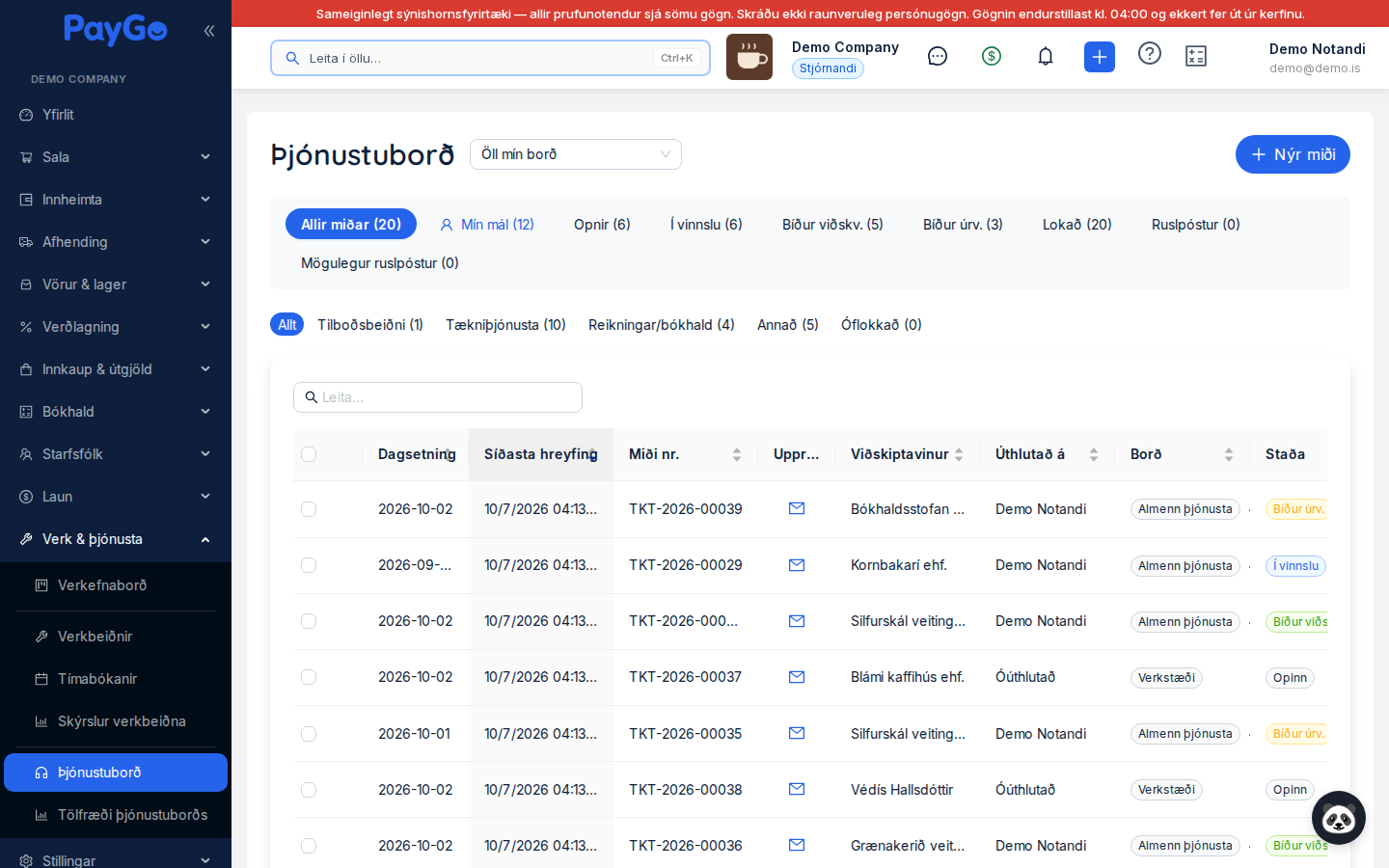
Filter tabs at the top. Above the list is a row of tabs that filter tickets by status, each with a count in brackets. The tabs are: All tickets, My tickets (tickets assigned to you), Open, In progress, Awaiting cust. (awaiting customer), Awaiting int. (awaiting internal action), Closed, Spam and Possible spam. Note that “All tickets” and “My tickets” do NOT show closed tickets or spam — use the “Closed” tab to see completed tickets. Below the tabs is a second row of category pills (the ticket category, with a count) that works independently of the status filter; see the automatic classification page. Next to the page title is a Board selector (“All my boards” or a single board) that scopes both the list and the counts; each ticket belongs to a board (an inbound email address). If the company has board memberships set up, you only see tickets on your boards plus tickets assigned to you; if you are on no board and have no tickets, an administrator must add you to a board under Settings → Jobs & service → Helpdesk email.
| Filter tab | Shows | Required |
|---|---|---|
| All tickets | All active tickets (not closed/resolved or spam) | No |
| My tickets | Active tickets assigned to you (primary or co-assignment) | No |
| Open | Tickets with the status Open | No |
| In progress | Tickets with the status In progress | No |
| Awaiting cust. | Tickets awaiting a reply from the customer | No |
| Awaiting int. | Tickets awaiting internal action | No |
| Closed | Closed and resolved tickets | No |
| Spam | Tickets marked as spam | No |
| Possible spam | Tickets the system suspects of being spam but nobody has confirmed | No |
Columns in the list. First comes a small clock icon column that shows a warning for tickets awaiting a reply (see the warning below). Then come: Date (creation date), Last activity (date and time of the last change), Ticket no., Subject (with an envelope icon if the ticket came from email, and ✨ if a fresh, unused AI reply suggestion is waiting), Source, Customer, Assigned to, Board, Status, Priority and Category. The Board column only appears if you are on more than one board and are viewing “All my boards”. The source is shown as an icon (hover over it to see the name). Several columns can be sorted by clicking the header.
| Field | Description | Required |
|---|---|---|
| Clock icon | The colour shows how long an open ticket has been waiting for a reply (green / orange / red) | Automatic |
| Date | The day the ticket was created | Automatic |
| Last activity | Date and time of the last change to the ticket | Automatic |
| Ticket no. | The unique ticket number (TKT-YYYY-00001) | Automatic |
| Subject | Title/subject of the ticket; envelope icon if it came from email | Yes |
| Source | Where the ticket came from: Email, Manual entry, Messenger, Instagram, API or Lead | Automatic |
| Customer | The linked customer, or “No customer” | No |
| Assigned to | All employees assigned to the ticket (primary first), or “Unassigned” | No |
| Board | The board (inbound email address) the ticket belongs to | Automatic |
| Status | The current status of the ticket | Automatic |
| Priority | Low, Medium, High or Critical | Yes |
| Category | The ticket category (automatic or manual classification) | Automatic |
| Source | Meaning |
|---|---|
| The ticket was created automatically from an incoming email | |
| Manual entry | The ticket was created manually in the helpdesk |
| Messenger | The ticket came from Facebook Messenger |
| The ticket came from Instagram messages | |
| API | The ticket was created through the API |
| Lead | The ticket is linked to a lead |
Search and bulk actions. At the top of the panel is a search field (“Search…”) that searches all tickets — including closed ones — by subject, ticket number, customer name and contact email. You can select several tickets with the checkboxes on the left; the Actions (N selected) button then appears with the menu: Close tickets (closes several at once), Merge tickets (enabled when at least two are selected) and Mark as spam and close (enabled when at least one selected ticket has an email address). In the merge dialog you choose a primary ticket; all messages and attachments of the others move to it, they are closed, and email replies to the old numbers land on the primary ticket. Staff replies on a merged ticket go only to the primary ticket’s email address, so a warning is shown if the tickets come from different senders or customers. “Mark as spam and close” puts the senders’ addresses on the spam list and also closes all other open tickets from the same senders. At the bottom, the pagination shows the total count (“N tickets”) and you can change the number per page.
Click the blue “New ticket” button at the top right. The “New support ticket” dialog opens.
Enter a “Subject” (required, up to 255 characters) — a short description of the issue. You can add more detailed text in “Description”.
In “Customer”, search (at least 2 characters) and select a customer from the register. This links the ticket to the customer's history.
Choose a “Priority” (required): Low, Medium (default), High or Critical.
Fill in “Contact name”, “Contact email” (the email address is validated) and “Contact phone” where applicable. The email address is used when you reply by email.
Select an employee in “Assign to” (only employees with a linked user account are listed). In “Internal notes” you can record notes that the customer NEVER sees.
Click “Create ticket”. The button turns green and shows “Saved” when the ticket has been created. Use “Cancel” to close without saving.
| Field | Description | Required |
|---|---|---|
| Subject | A short description of the issue, up to 255 characters | Yes |
| Description | A more detailed description of the enquiry | No |
| Customer | Search for and link a customer from the register | No |
| Priority | Low / Medium / High / Critical (Medium by default) | Yes |
| Contact name | Name of the person getting in touch | No |
| Contact email | Contact email address (validated format) | No |
| Contact phone | Contact phone number | No |
| Assign to | Employees responsible for the ticket — whoever replies is added automatically | No |
| Internal notes | Notes that are not visible to the customer | No |
The ticket drawer. When you open a ticket, a wide side panel appears with two parts. On the left is an information panel and action buttons; on the right is the conversation thread and the reply field. At the top of the panel are the ticket number and the ticket subject.
Left panel — details. Here you can change the ticket status in a dropdown (“Status”), see the priority, assign the ticket to one or more employees (“Assigned to” — multi-select; whoever replies to the customer is automatically assigned to the ticket, and if someone else is already assigned, the person replying is added as a co-assignee) and link or change the customer by searching. If a customer is linked, an information card is shown with the name (clickable, opens the sales board), kennitala (national ID), email address (copyable) and phone. If the contact is not in the customer register, the contact details are shown in a yellow frame. At the bottom is a timeline: Created, Auto-reply sent, First reply, Last reply from customer, Last reply from us, Resolved and Closed (whichever apply).
Action buttons in the left panel. Below the details are buttons: Create lead (creates a lead from the ticket with the contact and customer details) — or View lead if the ticket is already linked to a lead. Close ticket closes the ticket (with confirmation). If the ticket has a contact email address, Mark email as spam is shown — all future emails from that address then go to spam automatically. If the ticket is already spam, Not spam is shown instead: the sender’s address is added to the allow list and the ticket moves to Open. If the ticket is closed (or resolved), Reopen is shown. There are also Forward to expenses (sends the email and its attachments to the expense system and closes the ticket; afterwards View expense is shown), Create price quote (pick products and discount, see prices and margin, and attach an image of the quote to the reply or save it as an internal note) and the Change history link, which shows the ticket’s event history (creation, replies, auto-replies, merging, category changes and so on). In the left panel you can also choose the ticket’s Board (if you are on more than one) and see its category. If another employee has the same ticket open, a warning is shown, and drafts in the reply box are saved automatically and are visible to other users.
Click the row in the list to open the side panel with all communication.
In “Add reply”, choose between “Reply to customer” (sent by email) and “Internal note” (only visible to staff, highlighted in yellow in the thread).
Replies to the customer are written in a text editor with bold, italics, underline, lists and links. If a contact email address is recorded, “Reply will be sent to: ...” is shown.
Tick “Copy (CC)” and/or “Blind copy (BCC)” and enter an email address to send a copy of the reply to others.
Click “Add attachment” to attach files to the reply (only in replies to the customer).
Click “Send reply”. For an internal note the button is called “Save note” and is yellow. An automatic signature (if set up) is added at the bottom of the reply.
Move the ticket between statuses in the dropdown as work progresses, and close it with “Close ticket” when the issue has been resolved.
The conversation thread. Messages are shown newest first and are colour-coded: a blue card labelled “Customer” for messages from the customer, a green card for replies from staff (showing the email address the reply was sent to), and yellow with a dashed border labelled “Internal note” for internal notes. Each message shows the sender, a timestamp and how long ago it was sent. Attachments are shown as buttons with the file name and size; clicking opens a preview (images are shown directly, PDFs can be opened in a new window, and you can always “Download file”).
| Status | Colour | Description |
|---|---|---|
| Open | Grey | A new ticket waiting to be handled |
| In progress | Blue | The ticket is being worked on |
| Awaiting customer | Green | Waiting for a reply from the customer |
| Awaiting internal action | Orange | Waiting for internal action or information |
| Resolved | Cyan | Issue dealt with but the ticket not closed; selectable in the status dropdown and listed under the “Closed” tab |
| Closed | Green | Issue closed |
| Spam | — | Ticket marked as spam, hidden from the normal lists |
| Priority | Colour | Description |
|---|---|---|
| Low | Grey | A non-urgent issue |
| Medium | Blue | Default priority |
| High | Orange | An issue that needs attention soon |
| Critical | Red | An urgent issue that needs immediate attention |
Spam and allow list. On the “Spam” tab the View spam list button is shown, which opens the “Spam and allow list of addresses” dialog with two tabs. The Spam list holds addresses that have been marked as spam; you can remove an address with “Remove” (with confirmation), after which email from it is no longer classified as spam. The Allow list holds addresses that are never automatically classified as spam (for example noreply@ addresses that send legitimate email); addresses land there when you choose Not spam, and you can remove them, after which email from them can again be classified as spam. Auto-replies are still never sent to machine addresses, even if they are on the allow list. On the “Spam” tab there is also a Not spam button that moves the selected tickets to Open and adds their senders to the allow list. On the “Possible spam” tab there is a Not spam action that moves the selected tickets to Open.