
POS / Point of sale
The point of sale (POS) is designed for fast checkout at the till in a shop. You scan or search for products, add them to the cart, select a customer (or sell as a cash sale without a customer), take payment and print an invoice or receipt. Behind every sale an ordinary sales invoice is created in PayGo, so till sales and invoicing share the same data — stock is deducted, VAT is calculated and accounting entries are created just as for other invoices.
The page is called Point of sale (POS) and is not in the sidebar menu — it opens at the address /dashboard/sales/pos (and requires the pos:read permission). It is split in two: product selection on the left
(search, quick select and product list) and the cart on the right (on phones/tablets the cart appears as a floating button
and a sliding panel at the bottom).
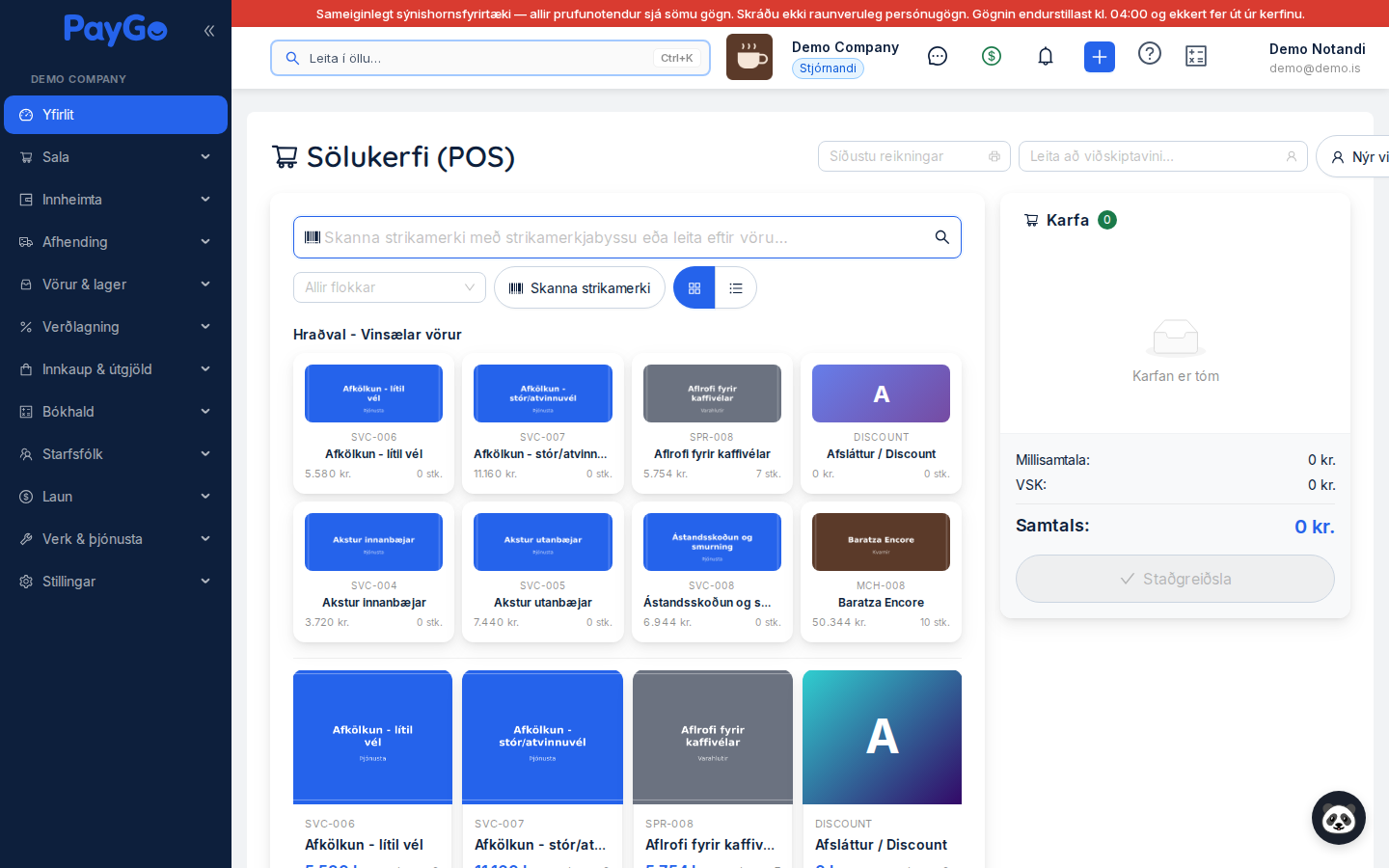
At the top of the page
Above the product selection is a header row with tools for finding a customer and looking up recent invoices:
| Field | Description | Required |
|---|---|---|
| Recent invoices | Dropdown that only appears if there are recent invoices. Shows the 5 most recent invoices (number, customer and amount). Clicking an invoice opens a preview dialog where you can print or download the PDF. | No |
| Search for customer… | Search field that looks up active customers by name or kennitala. The search starts when 2+ characters are typed (300 ms delay). Select a customer to link the sale to them. | No |
| New customer | Opens a dialog for creating a new customer on the spot. The newly created customer is automatically selected for the sale. | No |
Product selection (left side)
On the left are a search field, filters and the product list. Only active products are shown (the page loads up to 1,000 active products and the search filters that list). You add a product to the cart by clicking the product card (or pressing Enter/Space when it is selected with the keyboard).
| Field / button | Description | Required |
|---|---|---|
| Scan a barcode with a barcode scanner or search for a product… | The main search field. Type a search term to filter the product list by name, SKU or description. If a barcode scanner is used, it reads the barcode in and Enter adds the product straight to the cart. | No |
| All categories | Dropdown for filtering products by category. The categories are drawn automatically from the products. The selection can be cleared. | No |
| Scan barcode | Opens a camera scanner (for phones/tablets with a camera) that reads barcodes and adds the product to the cart. The dialog stays open for several scans in a row. | No |
| Grid view / List view | Two buttons (grid/list) that switch the product selection between cards in a grid and a vertical list. The selected one is highlighted in blue. | No |
| Quick select - Popular products | Shows the first 8 products in the product list as shortcuts at the top (despite the name they are not ranked by popularity). Only appears when neither a search nor a category is selected. | No |
The product cards show the product’s image (or the first letter of its name if it has none), the SKU, name and price inc VAT. In Grid view the category (if any) and the stock level (“Stock: X”) are added; in List view the stock level is shown with the product’s unit (e.g. “Stock: 5 pcs”). The cards in Quick select show the stock level as “X pcs”. The price shown in the POS is always the price including VAT.
The cart (right side)
The cart shows all the products that have been scanned or selected. On a desktop screen the cart is a fixed column on the right; on phones and tablets it appears as a floating cart button with the number of items, and a sliding panel opens at the bottom when you click it.
| Element | Description | Required |
|---|---|---|
| Count badge | Green badge next to “Cart” that counts the total number of units in the cart. | No |
| Clear | Empties the whole cart. A “Clear cart?” confirmation dialog appears before it is emptied. | No |
| Minus / Plus | Decreases or increases the units of a line by 1. If the quantity drops to 0, the line is removed. | No |
| Quantity field | Numeric field where you can type the quantity directly. Limited to the stock level unless the product allows negative stock. | No |
| Delete (red) | Removes the line from the cart completely. | No |
| Subtotal | Total of the lines excluding VAT. | — |
| VAT | Calculated VAT on all lines (according to each product’s VAT rate; a product with 0% VAT is calculated at 0%). | — |
| Total | Total amount including VAT — the amount the customer pays. | — |
Completing a sale
At the bottom of the cart is the payment button. Its label — and what happens — depends on whether a customer has been selected:
Scan barcodes with a barcode scanner, use the “Scan barcode” camera, or click product cards. Adjust the quantity with plus/minus or the quantity field. If a barcode contains a multiplier (e.g. a weight label), the correct units are added automatically.
Search for a customer at the top if the sale should be recorded against them (e.g. a sale on account with payment terms). If you skip this, the sale goes as a cash sale to the “Cash sale” customer.
If no customer is selected, the button reads “Cash sale”. Clicking it opens the “Choose payment method” dialog with buttons for Cash and/or Card. PayGo creates an invoice on the cash sale customer, posts it and records the payment immediately (final due date = today).
If a customer is selected, the button reads “Issue invoice”. A sales invoice is then created with 14-day payment terms (final due date in 14 days) without a payment being recorded — the customer pays later.
When the sale has been recorded, the confirmation dialog “Invoice created!” opens. From there you choose “Print invoice” (opens the PDF for printing) or “Download PDF”, or “Close” to continue.
Payment methods at the till
The cash sale dialog only shows payment methods that are active and have the code CASH (Cash) or CARD (Card). The button names are those defined under Settings → Collections & bank → Payment methods.
- Cash (CASH): Payment in cash.
- Card (CARD): Debit or credit card.
Creating a new customer
The “New customer” button opens a dialog where you can register a customer without leaving the till. The newly created customer is automatically selected.
| Field | Description | Required |
|---|---|---|
| Name | The customer’s full name. | Yes |
| Kennitala | Kennitala in the format 000000-0000. | No |
| Phone | The customer’s phone number. | No |
| Email address (validated as a valid email format). | No |
Barcode scanning
There are two ways to scan:
- Barcode scanner: Point the scanner and scan — it reads into the main search field and adds the product to the cart on Enter. If the barcode is not found, PayGo tries to find a product by SKU.
- Camera (“Scan barcode”): Opens a scanning dialog that uses the device’s camera. The dialog stays open so you can scan several products in a row.
A beep indicates a successful scan, and a different sound plays if a barcode is not found.
Effect on stock and accounting
Since every till sale is in fact a sales invoice, the same automatic effects take place as with ordinary invoicing:
- Stock is deducted and a stock movement is recorded with a reference to the sale.
- VAT is calculated according to each product’s VAT rate.
- For a cash sale the invoice is posted and the payment recorded immediately (the payment gets the status “confirmed”/paid), so accounting entries are created for both the sale and the payment received.
- For a sale on account the invoice is created with payment terms and the payment is recorded later (e.g. under Collections → Payments received).
Recent invoices and preview
The “Recent invoices” dropdown at the top gives quick access to the 5 most recent invoices. When an invoice is selected, the “Preview invoice” dialog opens with the invoice number, customer, date, final due date, product lines and totals — and the buttons “Download PDF” and “Print invoice”. This is useful for reprinting a receipt a customer has asked for.