
Overview (Dashboard)
Overview is the first page you see after logging in. For administrators and bookkeepers it is titled Financial overview and gives a quick picture of how the business is doing: quick links at the top, four key figures (revenue, expenses, result and cash), the trend over the last 12 months, what needs attention, the position of receivables and payables, VAT and more.
The page is a daily “home base” for following results, unpaid invoices, VAT and cash, and for jumping quickly to the main workspaces. Its layout is fixed — you cannot drag cards around or resize them.
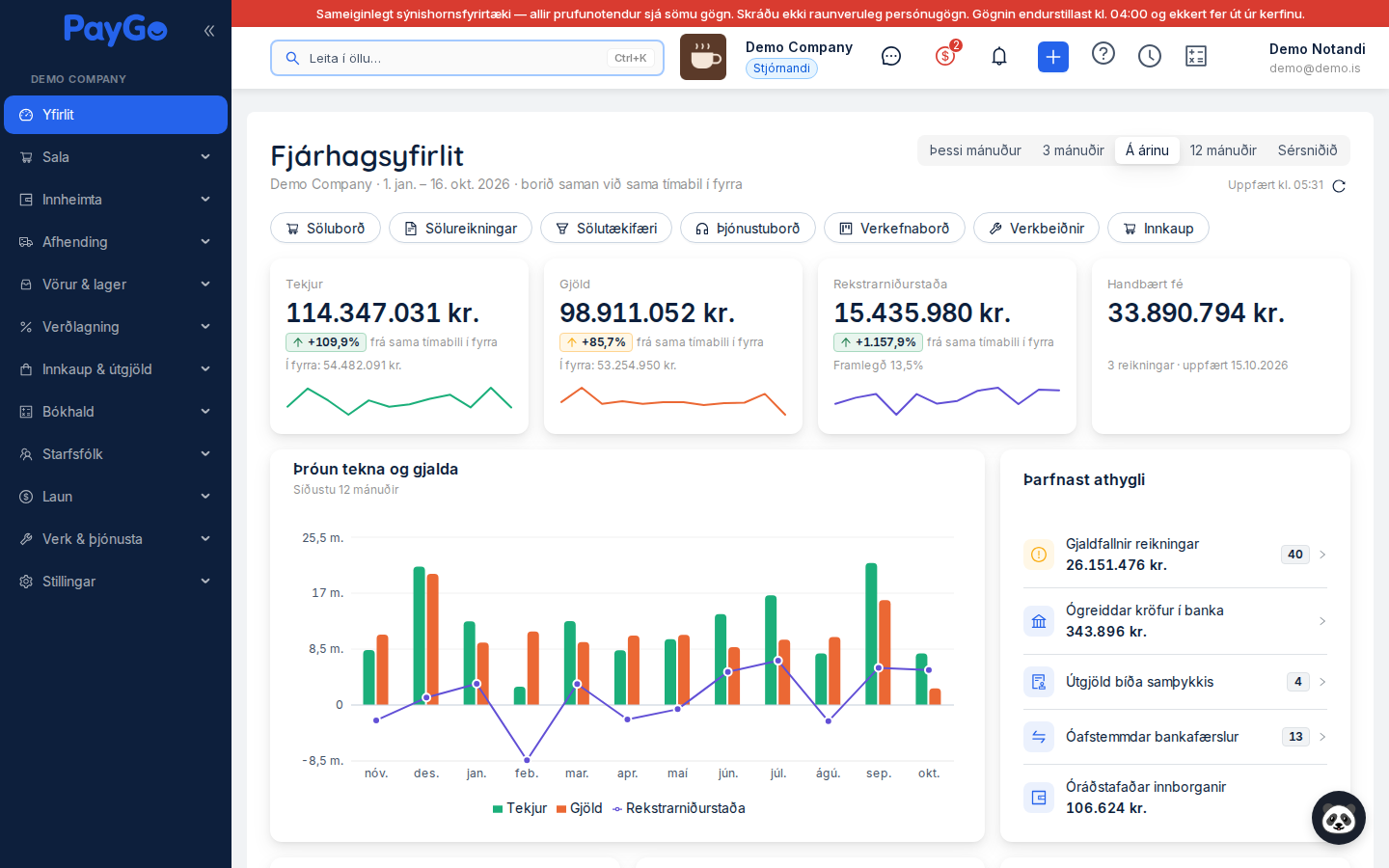
Quick links
At the top of the dashboard is a row of cards that open the main work areas with a single click. Each quick link is a card with an icon and a name. By default the following quick links are shown, but only those that are in your sidebar (a user without access to e.g. Work orders does not see that quick link):
| Quick link | Opens |
|---|---|
| Sales board | The sales board (draft-to-invoice workflow) |
| Sales invoices | List of sales invoices |
| Leads | Leads |
| Helpdesk | Helpdesk |
| Task board | Task board (tasks) |
| Work orders | Work orders (FSM) |
| Purchasing | Purchase orders |
Financial overview
Below the quick links the page is built from fixed rows, top to bottom. Each section loads on its own, so the page appears immediately even while figures are still arriving.
My work orders
If you have access to work orders and have open work orders assigned to you, a slim row appears at the top, just below the header: My work orders with a red badge showing the count. It is collapsed by default; click it to see up to five work orders, those coming up next first (by scheduled start time) and then unscheduled ones, most urgent first. The View all link opens the work order list with My work orders (your open work orders) selected. The row appears only when you have open work orders; with none, or without access, it is not shown.
Header: period and comparison
At the top is the page title “Financial overview” and a period selector. All figures in the key figures, the performance trend and the expense accounts follow the selected period.
- This month
- 3 months
- Year to date (default)
- 12 months
- Custom — a date picker (from–to) appears
Your choice is remembered in your browser. Changes are compared with the same period last year. Next to the selector are “Updated at …” and a refresh button. The data also refreshes automatically every few minutes and when you return to the window after a break.
Key figures
Four cards at the top show the main figures for the period. Each card shows the change from the same period last year and a small 12-month trend chart.
| Card | What it shows |
|---|---|
| Revenue | Revenue for the period, excluding VAT. |
| Expenses | Expenses for the period, excluding VAT. |
| Result | Revenue minus expenses, with the margin (as a share of revenue), e.g. “Margin 12.5%”. |
| Cash and cash equivalents | Total of bank accounts, with the number of accounts and when the balance was updated. Only shown to users with access to bank accounts. If the exchange rate is missing for foreign-currency accounts they are left out and the card says so. |
Revenue and expenses trend
A chart of the last 12 months with revenue, expenses and result for each month. The chart does not depend on the period selector.
Needs attention
A list of what is waiting to be handled. Each row shows a count and/or amount and a button that opens the relevant list. Rows appear only when they are relevant and you have permission to see them. If nothing is waiting it says “Nothing waiting”.
| Row | What it means | Permission |
|---|---|---|
| Overdue invoices | Sales invoices past their final due date. | The link to the list requires invoices:read |
| Unpaid bank claims | Bank claims that have not been paid. | Administrators and bookkeepers |
| Expenses awaiting approval | Expenses waiting for approval. | Access to expenses |
| Unreconciled bank transactions | Bank transactions still to be reconciled. | Access to bank transactions |
| VAT final due date | A reminder that the VAT filing final due date is approaching, e.g. “VAT …: final due date in 5 days”. | accounting:read |
| Uninvoiced orders | Sales orders that have not been invoiced. | orders:read |
| Unapplied prepayments | Customer prepayments that have not been applied. | prepayments:read |
Outstanding receivables and Owed to suppliers
Two cards side by side. Outstanding receivables shows unpaid sales invoices and Owed to suppliers shows unpaid supplier invoices. Each card shows:
- the total of open invoices and their number (including VAT, outstanding balance);
- how much of it is overdue (or “Nothing overdue”);
- how much has its final due date within 7 days;
- aging in five buckets: Not yet due, 1–30 days, 31–60 days, 61–90 days and Over 90 days.
VAT
A card with the VAT position for the current and the previous period. For each period you see the amount and whether it is Payable, Refund due or Nothing payable, together with the final due date of the filing or the “Filed” label. If there is no VAT information for the period, that is shown. See VAT.
Overdue invoices
A table of overdue sales invoices, oldest final due dates first, with the columns Customer, Final due date, Overdue (number of days) and Outstanding (balance); the invoice number appears under the customer name. Click a row to open the invoice and “See all” to open the full list. The table requires invoices:read; if no invoice is overdue it says “No overdue invoices”.
Largest expense accounts
An overview of the expense accounts that took the most in the selected period. The five largest are listed with their amounts and the rest is summed up in an “Other” line, which shows how many accounts it holds. Click “Other” to expand the line and see every account it covers, each with its amount; the card does not grow, the list scrolls instead, and “Hide breakdown” closes it again. If there are no expenses in the period it says “No expenses in the period”.
Bank accounts and credit cards
This card is shown only to administrators (TENANT_ADMIN) and super administrators and sits near the bottom of the page (above Payroll cost, when that is shown). It shows tiles for the bank accounts and credit cards you have chosen to see — by default all active ones. Each bank tile shows the bank name, account number (or IBAN), balance and — where applicable — Available (overdraft limit/available funds). A credit card tile shows the nickname/card type, masked card number, amount owed (shown with a minus sign in red if it is greater than 0), Limit and Available.
- You can reorder the tiles by dragging them (drag the handle in the top right corner of the tile). The order is saved in the browser.
- With the gear icon in the top right corner you choose which accounts and cards are shown. The “Select accounts and cards” window lists all of the company's accounts and cards — including inactive ones, which are marked “Inactive” — and you tick the ones that should be shown. The selection is saved in the browser, new accounts are added automatically, and if nothing is selected the message “Nothing selected for display” is shown.
- In the top right corner of the widget is the refresh button “Refresh balances” for fetching the latest balances manually.
- If no accounts or cards are registered, the message is: “No bank accounts or credit cards registered. Go to Settings → Billing & bank → Bank connections to set them up.”
Payroll cost
A chart of payroll cost for the last 12 months and totals for the selected period: Net pay, Withholding tax, Pension funds, Union dues and Social security contribution, plus a “Total for the period” line. The card is shown only to users with payroll:read and only when the company has payroll data. Payroll periods in Draft status are not counted.
Banners at the top of Overview
In the shared demo company a red banner is shown at the top of every page: the data is shared by all trial users, real personal data must not be entered and the data is reset at 04:00. In a new company an administrator sees the banner “Company setup: X/Y steps completed” with a “Continue” button that opens the setup guide (see Getting started).
Sales board for sales staff
Users without financial permissions (e.g. sales staff) see a simpler dashboard focused on sales. At the top is the greeting “Welcome, [name]!” and a row of quick links: Sales board, Leads, Quotes, Sales orders, Sales invoices and Customers.
Below them are two comparison cards side by side — “This month” and “Last month” — with the company's sales figures for the month: Invoiced, Paid (green), Unpaid (red) and either Open quotes or Invoices (count). The figures show the company's total sales for the period, not just the sales of the logged-in user.
| Table | Columns | Content |
|---|---|---|
| Active leads | Name, Company, Status | The most recent active leads with a status badge. |
| My work orders | Number, Description and customer, Scheduled, Status | Open work orders assigned to you (only with access to work orders). High and urgent priority shows next to the number. "View all" opens the work order list. |
| Recent invoices | Number, Customer, Amount, Status | The most recent invoices of the month. |
| Open quotes | Number, Customer, Amount, Status | Quotes with the status draft/sent. |
| Status | Colour | Meaning |
|---|---|---|
| Paid | Green | Invoice paid in full (PAID). |
| Unpaid | Red | Invoice unpaid (UNPAID). |
| Partially paid | Orange | Partially paid (PARTIAL). |
| Overdue | Bright red | Overdue / past the final due date (OVERDUE). |
| Draft | Grey | Quote in draft (DRAFT). |
| Sent | Blue | Quote sent to the customer (SENT). |
| Accepted | Green | Quote accepted (ACCEPTED). |
| Rejected | Red | Quote rejected (REJECTED). |
| New | Blue | New lead (NEW). |
| Contacted | Teal | The lead has been contacted (CONTACTED). |
| Qualified | Green | Lead assessed as qualified (QUALIFIED). |