
Getting started
PayGo is an all-in-one business system (ERP) designed specifically for Icelandic companies. PayGo brings all the main parts of your business together in one place: sales, accounting, inventory, purchasing, payroll, project management, field service and more. This page walks you through the first steps — logging in, the dashboard and how to find your way around PayGo.
Login
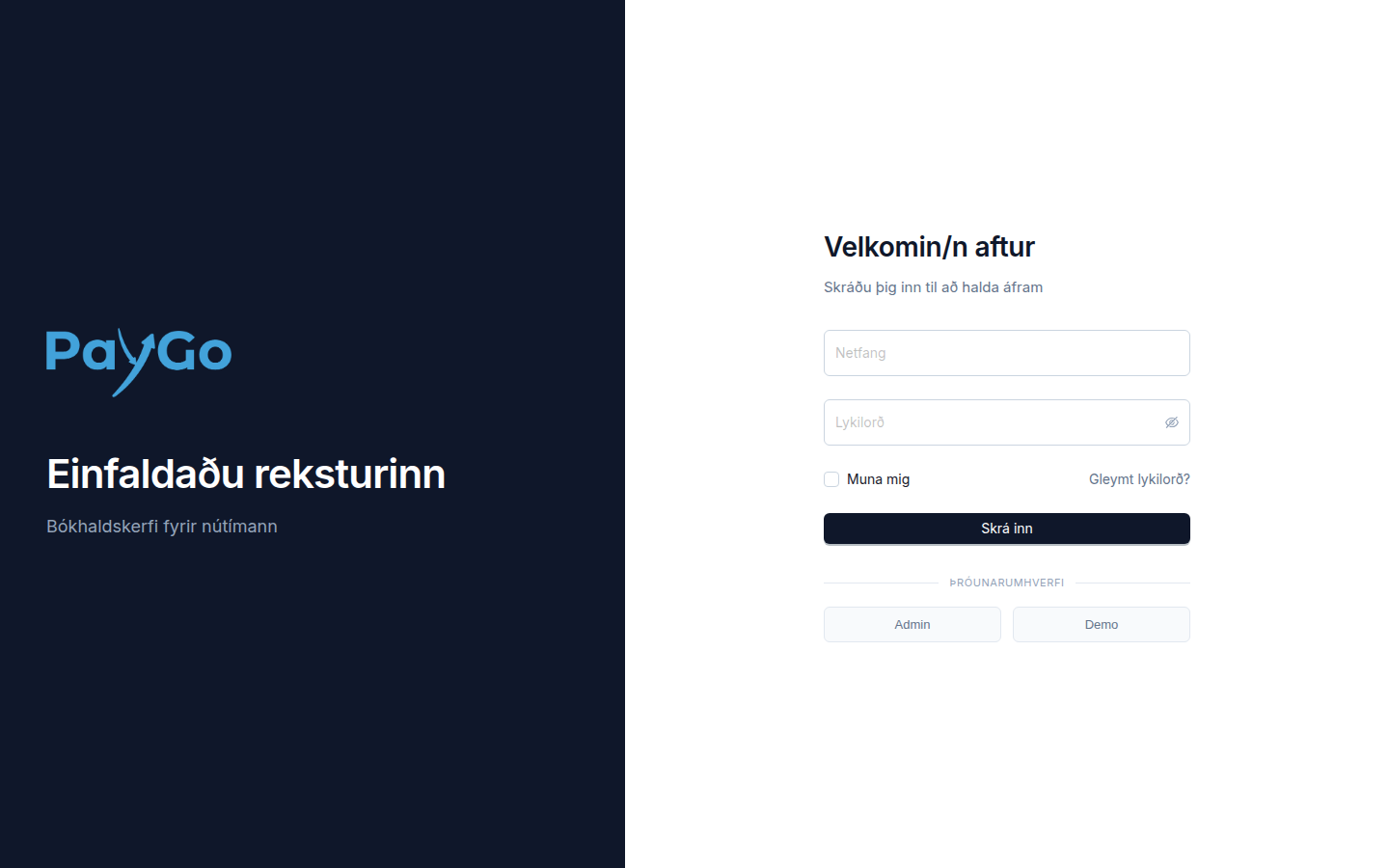
Open PayGo in your browser and log in with your email address and password. The login page greets you with “Welcome back” and the text “Log in to continue”.
| Field | Description | Required |
|---|---|---|
| The email address your account is registered with. It must be a valid email address, otherwise “Invalid email address” is shown. | Yes | |
| Password | Your password. Click the eye icon in the field to show or hide the password. | Yes |
| Remember me | Tick this to keep your login active for longer on this device. | No |
Type your email address and password into the fields. If anything is missing, the message “Email is required” or “Password is required” is shown.
Tick “Remember me” on your own device so you do not have to log in as often. Leave it unticked on shared computers.
Press the blue “Log in” button. While you are being logged in, the text changes to “One moment…”. If incorrect details are entered, “Incorrect email or password” is shown.
Two-factor authentication (2FA/MFA)
If your account has two-factor authentication enabled, the “Two-factor authentication” screen appears after you enter your email address and password. There you enter the 6-digit code from your authenticator app.
Type the code from the app into the six boxes. The cursor moves between boxes automatically. You can also paste the whole code at once.
Tick “Trust this device for 30 days” to skip the code on this device for the next 30 days.
PayGo confirms automatically once all six digits have been entered, or you can press “Confirm”. An incorrect code gives the message “Incorrect code”. Use “← Back” to return to the login page.
Company and setup
If you belong to more than one company, the “Select company” screen appears after login; you can switch company at any time in the header. In a new company an administrator sees the banner “Company setup: X/Y steps completed” at the top of the page. “Continue” opens the “Company setup” guide with the steps Company, Accounting & RSK, Numbering, Payment methods, Bank connection, Electronic invoices, Employee and Overview. Each step can be saved (“Save and continue”) or skipped (“Skip for now”) and finished later.
Dashboard (Overview)
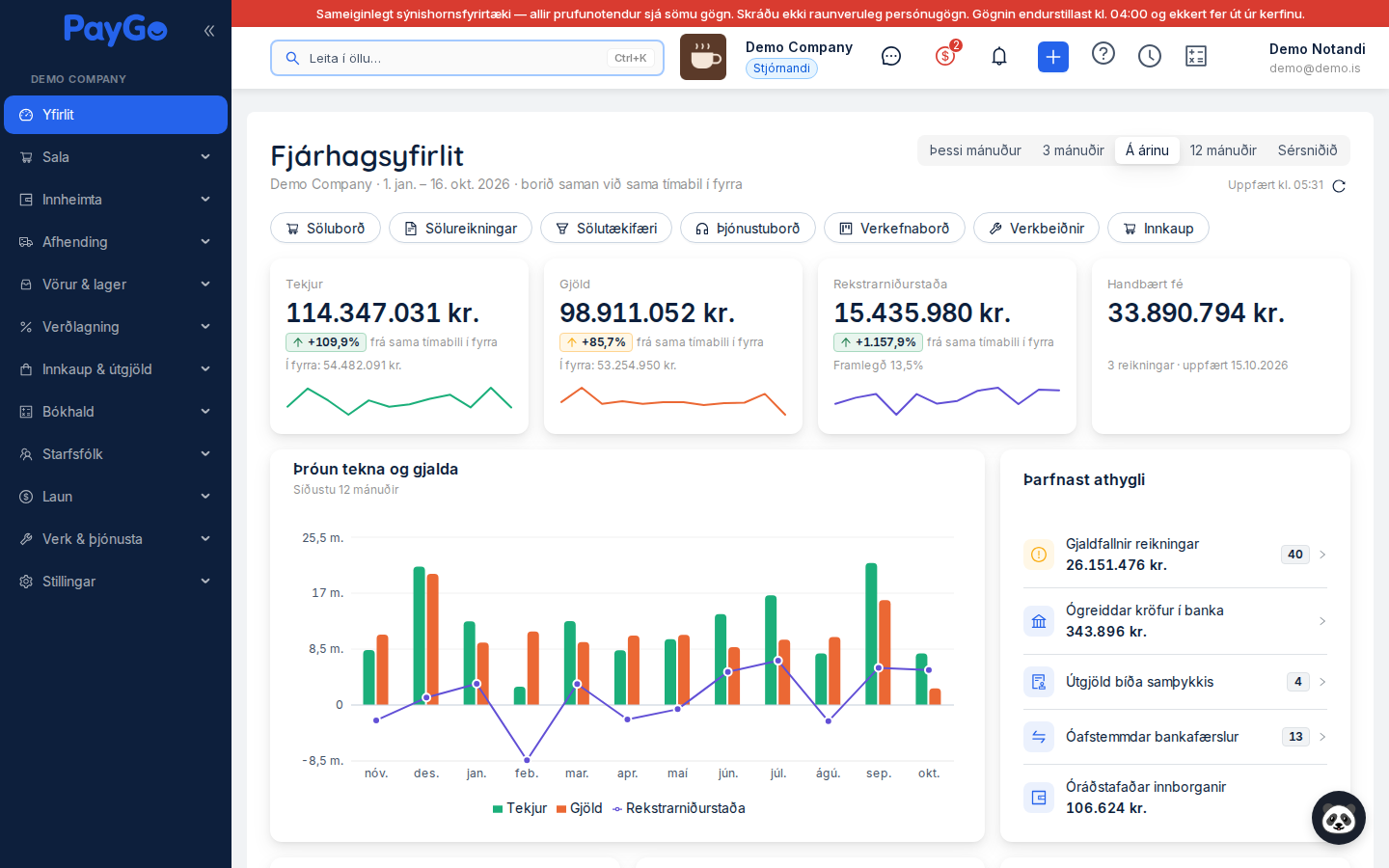
After you log in, the dashboard appears; it is called “Overview” in the menu. It shows the company's main key metrics and gives you quick access to every part of PayGo. What the dashboard contains depends on your role: administrators and users with accounting permission (accounting:read) see the full financial dashboard, while other users (e.g. sales staff) see a simpler sales overview. See the Overview page for details.
At the top of the dashboard is a row of quick links (Sales board, Leads, Sales invoices, Sales orders, Quotes, Deliveries, Products, Purchasing, Helpdesk, Task board, Work orders and Schedule). You only see quick links to what you have access to in the sidebar. Below them the Financial overview is built from fixed rows (you cannot drag cards around or resize them).
| Section | What it shows |
|---|---|
| Key figures | Revenue, Expenses, Result (with margin) and Cash and cash equivalents, each compared with the same period last year. Cash is only shown to users with access to bank accounts. |
| Revenue and expenses trend | A chart of the last 12 months. |
| Needs attention | Overdue invoices, unpaid bank claims, expenses awaiting approval, unreconciled bank transactions, VAT final due date, uninvoiced orders and unapplied prepayments — rows only appear when relevant and permitted. |
| Outstanding receivables and Owed to suppliers | Open balances including VAT, what is overdue and aging. |
| VAT | VAT position for the current and previous period with the final due date. |
| Overdue invoices | A list of overdue sales invoices, oldest final due dates first. |
| Largest expense accounts | The expense accounts that took the most in the period. |
| Bank accounts and credit cards | Current balances (administrators only). The backend syncs balances from the bank regularly; click the refresh icon to fetch the latest balances and the gear icon to choose which accounts and cards are shown. |
| Payroll cost | Payroll cost for the last 12 months (only with payroll:read and when payroll data exists). |
At the top of the page you can choose This month, 3 months, Year to date (default), 12 months or Custom. Your choice is remembered and the figures are compared with the same period last year.
In the “Needs attention” card you can open the relevant list directly, e.g. overdue invoices or unreconciled bank transactions.
Top bar (header)
At the top of every page is a header with actions that are always within reach. There you will find search (System search), the company selector, messages, notifications, quick create, the help icon, the time clock, the calculator and the user menu.
| Action | Description |
|---|---|
| Search everything… | The System search box (Ctrl+K): finds invoices, orders, quotes, products, customers and suppliers in one place. |
| Select company | A dropdown/badge showing the name of the company you are working in. If you have access to more than one company, you can switch between them here. The badge shows your role: “Administrator” or “User”. |
| Messages | An icon for internal messages between users. |
| Unpaid claims | An indicator showing the number of unpaid invoices in the bank (administrators and bookkeepers only). |
| Notifications | A bell icon showing PayGo notifications. A red number shows how many are unread. |
| New (+) | A blue plus button for quick creation: Invoice, Order, Quote (these three open the Sales board) or Product number. You only see what you have access to. (Hidden on very narrow screens.) |
| Help (?) | A help icon. If the page you are on has training videos, the “Help on this page” drawer opens with the videos and a link to the user guide page; otherwise the page's user guide page opens in a new tab. |
| Time clock | A clock icon that clocks you in and out of a shift (a green counter while you are clocked in). Only shown if you are linked to an employee. |
| Calculator | A calculator icon that opens a floating calculator that can be pinned and dragged around. Supports the keyboard. |
| User | Your name and profile picture. Opens the user menu (see below). |
Click the company selector at the top and choose another company. You get the confirmation “Company selected - data is updating”. PayGo reloads and keeps you on the same page if the new company has access to it, otherwise it goes to the nearest menu item or Overview.
Sidebar
On the left of the screen is the sidebar, which gives access to every part of PayGo. At the top are the company name and “Overview”. Submenus open when you click a group; the groups are arranged by workflow. You can collapse the menu with the fold/unfold button to get more space.
| Top-level category | Main subpages |
|---|---|
| Overview | The company dashboard (the home page). |
| Sales | Sales board, Leads, Customers, Quotes, Sales orders, Sales invoices, Subscriptions, Contracts, Sales statistics, Sales reports. |
| Collections | Payments, Bank claims, Credit balances. |
| Fulfilment | Pending deliveries, Delivery notes, Shipments. |
| Products & stock | Products, Product categories, Labels, Stock movements, Stock counts, Write-offs, Serial numbers, Lot numbers, Stock reports. |
| Pricing | Price changes, Discount runs, Fixed prices, Discounts, Discount codes. |
| Purchasing & expenses | Purchase requisitions, Purchase orders, Goods receipts, Related purchases, Suppliers, Expense entry, Incoming emails, Unpaid claims. |
| Accounting | Journal, Journal entries, Movements, Chart of accounts, Reconciliations, Card settlements, Currency revaluation, Loans, Fixed asset register, Trial balance, Financial reports, Budgets, Annual financial statements, Tax return, Opening balances, VAT, Customs declarations (and AI audit when the extension is active). |
| People | Time clock, Staff hours, Employees & access, Subordinates' absences, Absence calendar. |
| Payroll | Payroll overview, Payroll runs, Payroll employees, Time entry, Absences, Payroll payments, Payroll reports, Wage statements. |
| Work & service | Task board, Work orders, Schedule, Work order reports, Helpdesk, Helpdesk statistics. |
| Settings | Settings overview and the sections Company, Sales, Collections & banking, Purchasing & expenses, Accounting, Products & stock, Payroll, Work & service, Online store, My pages and Data & connections. |
User menu
When you click your name in the top right, the user menu opens with personal actions and logout.
| Option | Description |
|---|---|
| System manual | The green button at the top of the menu. Opens this user guide in a new tab. |
| My details | Your profile page — personal details, password, two-factor authentication and your own settings. |
| Time off and leave | An overview of your own time off, holiday and absences. |
| My warehouse | Shown if you have a salesperson warehouse — opens the stock linked to you. |
| Help & support | A page with Support's contact details (email, phone and opening hours), a form for submitting a support request (with category, priority and attachments) and answers to frequently asked questions. Once the request has been sent, a confirmation with its number stays on the page, along with a “Send another request” button. |
| Language | Switches the interface language between Icelandic and English. The setting is saved on your user. |
| Light/Dark theme | Switches between the light and dark theme. A confirmation is shown when you switch. |
| Log out | Logs you out of PayGo and returns you to the login page. |