
Serial numbers
Serial numbers let you track each individual unit of a product — one by one. This suits expensive products, electronic devices and anything else where you need to know exactly which unit was purchased, where it is, when its warranty expires and who it was sold to. Each serial number has its own status, location and history of movements, so it can be traced all the way from purchase to sale and returns.
Serial numbers are created on goods receipt. When a serial-tracked product is received on a goods receipt, you enter one serial number for each unit received in the Serial numbers column on the line (marked “SN#”), separated by commas. The number of serial numbers must match the quantity received exactly and each serial number may appear only once — otherwise PayGo rejects the receipt with an error message. Each serial number is created with the status Available, the receipt date as its purchase date, the line’s purchase price and the warehouse the goods were received into, and gets its own Purchase movement. If any of the serial numbers is already registered on the same product, the whole receipt is rejected.
You reach the page under Products & stock → Serial numbers. At the top there are two buttons: Refresh to reload the list and New serial number (the blue primary button) to register a new unit.
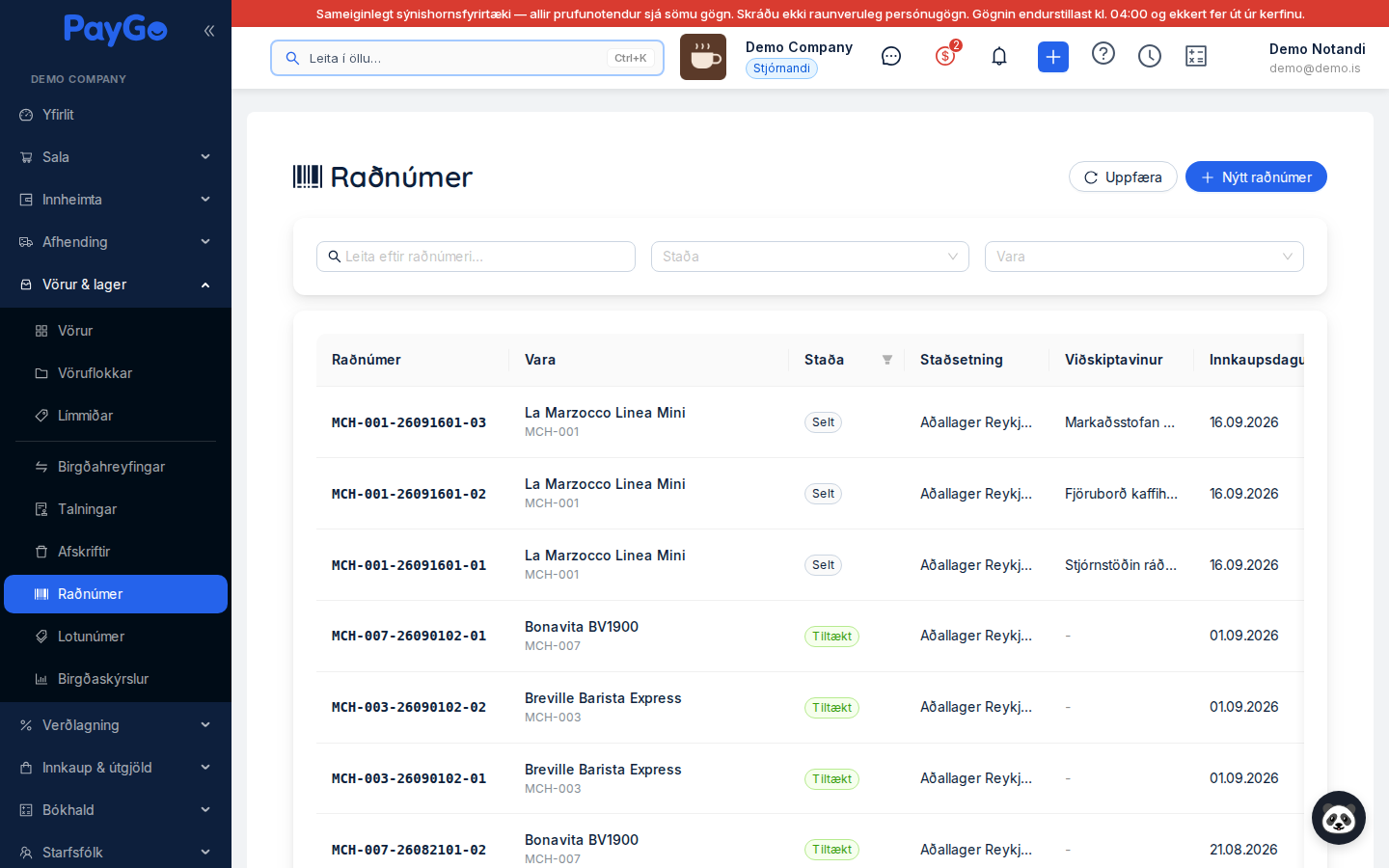
Search and filtering. Above the table is a filter card with three fields: a search field where you type “Search by serial number…” (searches the serial number itself), a status filter (Status) and a product filter (Product). The product filter shows only products that use serial number tracking, and you can search it by name or SKU. In addition, you can filter directly in the header of the Status column in the table and sort by Purchase date by clicking the column header. The status filter offers the same statuses that are explained in the status table below.
| Column | Description |
|---|---|
| Serial number | The serial number itself, shown in a fixed-width font (monospace) so it is easy to read. |
| Product | The name of the product with the SKU below it in smaller, grey text. |
| Status | Colour-coded status of the unit (see the status table below). You can filter by status in the column header. |
| Location | The unit’s current warehouse (e.g. Aðallager Reykjavík). “-” is shown if no warehouse is recorded on the unit. |
| Customer | The customer who bought the unit. Shown only when the status is Sold, otherwise “-”. |
| Purchase date | Date of purchase in the format DD.MM.YYYY. The list can be sorted by this column. |
| Actions | The Details and History buttons for each row. |
At the bottom of the table you can see the total count (“Total X serial numbers”) and choose how many rows are shown per page (20, 50 or 100 — 50 by default).
Click “New serial number”. The “Create serial number” dialog appears with two tabs: “Manual entry” and “Scan barcode”.
On the “Scan barcode” tab the camera opens. When a barcode is scanned a confirmation appears (“Barcode scanned”), the value is moved automatically into the serial number field and the dialog switches back to “Manual entry”.
Enter (or scan) the serial number and fill in the fields that apply: purchase date, purchase price, warranty expiry and notes. Note: as the dialog currently stands, no options appear in the Product dropdown or in Current location, so you cannot select a product or location in it.
Click “Create”. The button turns green and shows “Saved”, and the new serial number appears at the top of the list. A newly registered serial number automatically gets the status Available.
In the list, use “Details” to see all values of the unit and “History” to see a timeline of all its stock movements.
| Field | Description | Required |
|---|---|---|
| Serial number | Unique serial number of the unit. Typed in or scanned. Must be at least 3 characters. | Yes |
| Product | The product the unit belongs to. Required, but the dropdown is currently empty (no options), so a product cannot be selected in the current version. | Yes |
| Status | Initial status. A newly registered unit is, however, always set to Available on the server regardless of the selection. | Yes |
| Current location | Warehouse/location where the unit is stored. The dropdown is currently empty (no options). | No |
| Purchase date | Date of purchase (DD.MM.YYYY). | No |
| Purchase price | Purchase price of the unit in krónur (e.g. 45.000 kr.). | No |
| Warranty expiry | Date when the warranty of the unit expires. | No |
| Notes | Free text with notes about the unit. | No |
The Details dialog. When you click “Details”, a dialog opens with all the information about the unit in a summary table: Serial number, Product (with SKU), Status, Location, Purchase date, Purchase price, Warranty expiry, Customer, Notes and “Created” (date and time of registration). Click “Close” to close the dialog.
The History dialog. “History” opens a timeline of all stock movements linked to the serial number, newest first. Each entry shows the movement type, date and time, who recorded it and a note if there is one. If there are no movements, “No movements recorded for this serial number” is shown.
| Movement type | Meaning |
|---|---|
| Purchase | The unit was purchased / received into stock. |
| Sale | The unit was sold to a customer. |
| Return | The unit was returned. |
| Adjustment | Manual adjustment of the unit. |
| Transfer | The unit was moved between locations/warehouses. |
Unit status. The status tells you where in the process the unit is. It updates automatically when the unit goes through a sale, return and other movements. This page has no buttons for changing the status manually or deleting a unit — only Details and History — so status changes happen through PayGo's processes.
| Status | Colour | Meaning |
|---|---|---|
| Available | Green | The unit is in stock and available for use. Default status of new serial numbers. |
| Sold | Grey | The unit has been sold to a customer. The customer is then shown in the list and in the Details dialog. |
| Returned | Orange | The unit was returned by a customer. |
| Damaged | Red | The unit is damaged. |
| Allocated | Blue | The unit is reserved for an order or transfer. |
| Quarantined | Yellow | The unit is in quarantine/quality inspection. |
| Scrapped | Reddish | The unit has been written off. |