
Payroll periods
Payroll runs (formerly “Payroll periods”) are the periods for which salaries are calculated — usually one calendar month. Each run covers selected employees and goes through a fixed process: Calculated → Approved → Posted → Sent → Closed. A new run is created and calculated in one step and lands in the Calculated status; the Draft status appears when a run is reopened or when the calculation at creation does not complete. The page has two parts: a list of all runs and a run page for each run, where payslips, posting and all submissions take place.
The list
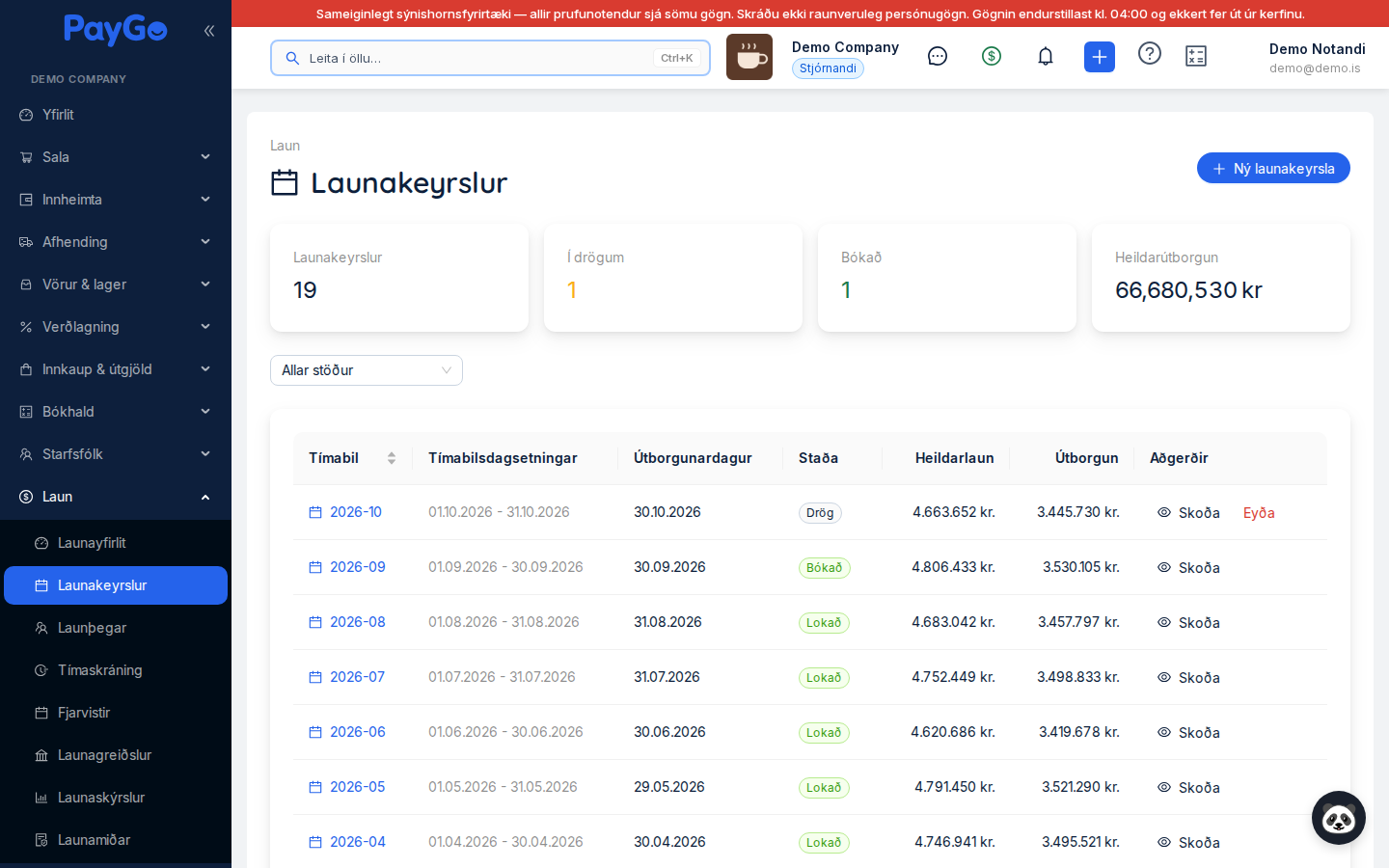
At the top are four figure cards: Payroll runs (count), In draft, Posted and Total net pay. The cards only count the runs the list is currently showing, so they change with the status filter. Posted counts only runs in the Posted status — runs that have moved on to Sent or Closed are not counted there. Below the cards are a status filter and the table itself.
| Column | Description |
|---|---|
| Period | Name of the run (e.g. 2026-03). Clickable — opens the run page. The list can be sorted by this column. |
| Period dates | Start and end date of the period (shown on large screens only). |
| Payment date | Date of payment, or “-” if none is recorded. |
| Status | Colour-coded status tag of the run (see the status table below). |
| Gross pay | Total gross pay of the run. |
| Net pay | Total net pay — what is paid out to employees. |
| Actions | View, Recalculate (only in the Calculated status) and Delete (only in Draft). |
Status filter: a drop-down above the table with the options All statuses, Draft, Calculated, Approved, Posted and Reported. There is no option for Sent or Closed — choose All statuses to see those. The table shows 12 runs per page.
Row actions: View opens the run page, Recalculate calculates the run again, and Delete deletes the run together with all its payslips after confirmation. Only a run in Draft can be deleted.
New payroll run
Click New payroll run in the top right. The New payroll period dialog opens pre-filled for the current month: a name in the form YYYY-MM, the first and last day of the month, and the last day of the month as the payment date. If you pick a different start date, PayGo fills in the end date and payment date (the last day of that month) and the name automatically.
| Field | Description | Required |
|---|---|---|
| Period name | Name of the run, e.g. “2026-03”. | Yes |
| Start date | First day of the period. Choosing it fills in the end date, payment date and name. | Yes |
| End date | Last day of the period. The journal entry of the run gets this date. | Yes |
| Payment date | Planned payment date (may be left empty). | No |
| Employees | The “All active employees (N)” checkbox includes every active employee registered in payroll. Untick it to pick individual employees in a multi-select list. | Yes |
Check the name, dates and payment date. Choose all active employees or specific employees.
PayGo runs three steps in a row, shown as a progress bar: Create period → Create payslips → Calculate payroll. When it finishes, “Payroll run created and calculated” appears and the run is in the Calculated status. If an error occurs in the second or third step, the run already exists and appears in the list — open it and continue from there.
Click the name of the run to go to the run page, where review, approval, posting and sending take place.
The run page
At the top are the status tag and action buttons, which change with the status. Below them come the information card, the cost overview, rate notices (if any), the payslip table, the submission cards and finally the final-step panel at the bottom.
Buttons at the top:
- Time entry — opens the payroll time entry page.
- Export — drop-down (see below), shown once the run has payslips.
- Add employee — in Draft or Calculated.
- Bonuses — holiday and December bonus, enabled in Draft or Calculated.
- Create payslips — Draft only.
- Calculate payroll — enabled in Draft or Calculated.
- Approve — in the Calculated status.
- Post payroll run (green) — when the run is approved but not yet posted.
The information card shows Period (dates), Payment date, Created, Employees (number of payslips) and — after posting — Accounting with a button (“Journal entry …”) that opens the run’s journal entry.
Total employer cost
This card shows the employer’s total cost (gross pay + payroll-related costs) with a proportional bar and a breakdown that adds up exactly to the total. Only items with an amount are shown:
- Net pay — what employees are paid
- Withholding tax — tax withheld
- Pension/union dues (employee) — pension, voluntary pension and union dues deducted from pay
- Advances/deductions — advance instalments and other after-tax deductions
- Holiday pay deposited to holiday pay account — holiday pay of employees whose holiday pay is deposited
- Employer pension contribution
- Social security contribution
- Other payroll-related costs — e.g. sickness, holiday, rehabilitation and continuing-education funds
If holiday pay accrues as a liability, an extra line appears at the bottom: Holiday pay liability for the period (accrued).
Payslips (the table)
The table lists the run’s payslips (20 per page). The Show detailed figures switch in the corner adds extra columns. A totals row is shown at the bottom. A red warning triangle next to a name means settings are missing for that employee (hover to see what) — this must be fixed before the run can be approved.
| Column | Description | Detailed? |
|---|---|---|
| Employee | Name and kennitala. Triangle if settings are missing. | No |
| Gross pay | Gross pay on the payslip. | No |
| Tax | Withholding tax after the personal tax credit. | No |
| Pension | Employee pension contribution. | No |
| Voluntary pension | Employee voluntary pension savings. | Yes |
| Pers. tax credit | Personal tax credit used. | Yes |
| Employer pension | Employer pension contribution. | Yes |
| Employer voluntary pension | Employer contribution to voluntary pension. | Yes |
| Social security contribution | Employer social security contribution. | Yes |
| Union dues | Employee trade union dues. | No |
| Holiday pay | Holiday pay for the period and a tag for the holiday pay method: Accrued, Paid out, Deposit (net) or Deposit (gross). Hover to see the holiday pay percentage. | No |
| Net pay | What is paid out (green). | No |
| Total cost | Total employer cost of the employee (blue). | Yes |
| Status | Status of the payslip (see the table below). | No |
| Actions | View breakdown, Edit salary lines, Download payslip (PDF) and Remove employee. |
| Payslip status | Colour | Meaning |
|---|---|---|
| Draft | Grey | Payslip created, not calculated |
| Calculated | Blue | Salary calculated |
| Changed | Orange | Payslip changed after the run was last calculated — needs recalculating |
| Approved | Yellow | Payslip approved |
| Posted | Green | Payslip posted to the accounts |
View payslip breakdown
The eye button opens the Payslip - [name] dialog. It shows:
- Earnings — every salary line with units × rate; where a rate is derived (e.g. an hourly rate from the base salary) the Rate derivation is shown too.
- Deductions — including advance instalments with the amount paid, instalment number and remaining balance.
- Tax calculation — gross pay, non-taxable portion, taxable earnings, tax base after pension and voluntary pension, tax brackets (rates from the year’s payroll settings), personal tax credit and withholding tax after the credit, plus pension, voluntary pension and union dues.
- Employer cost — employer contributions, social security contribution and fund contributions with their rates.
- Holiday pay and Hours from time entry where relevant.
If the payslip totals do not match its lines, the warning “The payslip totals do not reconcile” appears — recalculate the payslip in that case.
Edit salary lines
The pencil button (Draft or Calculated only) opens the Edit salary lines - [name] dialog. Salary items are grouped into Earnings, Deductions and Employer cost. You can:
- Add a salary item — choose the item and enter units and rate; the amount is calculated automatically (Units × Rate).
- Change units or rate on a line — the amount is recalculated automatically.
- Delete a salary item.
- Click Recalculate to recalculate the payslip; the run totals are updated at the same time.
Automatic lines are locked and tagged with their source: Time entry (change the hours in time entry), Advance (change it in the employee’s payroll settings), Holiday (calculated from the employee’s holiday pay rate and method), Bonus (change it with the Bonuses button) or Automatic. Salary items from the pay scale and lines you have added yourself can be edited here.
Adding employees
- Create payslips (Draft only) — a dialog with search, “Select all”/“Deselect all” and a checkbox list of employees who are not yet in the run. Click “Create (N)”.
- Add employee (Draft or Calculated) — a searchable list where each employee has an “Add” button.
Bonuses — holiday bonus and December bonus
The Bonuses button (Draft or Calculated) opens a dialog where you choose Holiday bonus or December bonus. PayGo shows the reference period and the calculated amount for each employee: base amount × share of a full year based on weeks worked in the reference period × employment percentage. The base amount is the year’s amount in the payroll settings, unless a separate amount is recorded for the employee’s trade union.
The table shows weeks worked, employment %, base amount, the calculated amount and the existing bonus line. You can change the amount for individual employees before clicking Add. One automatic bonus line is then created (or updated) on each payslip and the salaries are recalculated. Lines you have added yourself are never touched.
Export
The Export drop-down at the top contains: Payslips (PDF), Export (Excel), Withholding tax file (RSK), Pension fund file and Trade union file.
Status flow of the run
The action buttons at the top and the final-step panel at the bottom of the page show the next step based on the run’s status.
| Status | Colour | Meaning |
|---|---|---|
| Draft | Grey | Run reopened, or the calculation at creation did not complete. Employees can be added and removed, payslips created and salaries calculated. |
| Calculated | Blue | Salaries calculated — the status a new run gets. Still editable and can be recalculated; awaiting approval. On the final-step panel it is called “Calculated (legacy)”. |
| Approved | Yellow (cyan in the run page header) | Approved and locked for changes — ready to be posted. |
| Posted | Green | The payroll entry is posted to the general ledger — the run can be sent out. |
| Sent | Gold | The first submission has succeeded (e.g. a payroll return, withholding tax or payslips by email). Older runs that were sent before posting became mandatory can also be in Sent without being posted. |
| Closed | Green | The run is locked for good. |
| Reported | Purple | Legacy status, treated like Closed. |
The Calculate payroll button (Draft or Calculated) recalculates all salaries, taxes and payroll-related costs and sets the run to Calculated.
In the Calculated status the Approve button is at the top; if the run is in Draft it is Approve payroll run on the final-step panel at the bottom. Approval first recalculates the salaries and then sets the run to Approved. After that, payslips cannot be changed unless the run is reopened. Approval is locked while settings are missing for any employee (the red triangles) and requires permission to approve payroll.
The green Post payroll run button (at the top and on the final-step panel) opens a preview of the journal entry. After confirmation the payroll entry is created in the general ledger, the run’s advance instalments are counted as deducted and the run moves to Posted.
After posting the submission cards open: payment file, payslips by email, payroll returns to collection agencies and withholding tax to RSK. When the first submission succeeds the run moves to Sent.
Close payroll run on the final-step panel (in Posted or Sent) locks the run for good. Closing accrues the employees’ holiday days for the period. A closed run cannot be reopened.
The final-step panel and the closing checklist
At the bottom of the page is the final-step panel: the run’s status and the next action (Approve, Post, Close or Reopen). After posting it shows a checklist of the filings and how many steps are done:
- Payroll return to Iceland Revenue and Customs (withholding tax) — statutory filing
- Payroll returns to collection agencies — statutory filing
- Payment file (SI080) retrieved
- Transactions marked as paid in the bank
- Payslips sent by email
If anything is outstanding when you click Close payroll run, the “Outstanding filings” warning dialog opens and explains the consequences of each outstanding step (red if statutory filings are outstanding). There you choose Cancel and finish the filings or Close anyway. The only condition PayGo enforces itself is that the run is posted.
Post payroll run — journal entry preview
The posting dialog shows exactly the debit and credit lines the entry will write (account, name, debit, credit), the totals and the entry date, which is the end date of the period. The Confirm and post button is only enabled if debit and credit balance. If the run is already posted, the tag “Already posted” appears and no new entry is created.
Bank submission — payment file (SI080)
The card shows the number of recipients and the total amount. If holiday pay is deposited to holiday pay accounts, the amount is split into Net pay, Holiday pay deposits and Total paid, and the deposits appear as separate lines tagged “Holiday pay”. Tags show the state of the file: “File downloaded — unpaid”, “Marked paid [date]” and how many have already been put in a file.
- Select and download payment file (SI080) — a dialog where you choose employees (those already put in a file are not pre-selected) and download the file. After the download the selected employees are marked “Already sent”.
- Mark as paid — choose a payment date, which is set on the payslips of those included in the file.
If the run’s payment file has already been marked as paid, you must confirm separately (“Create new file”) before a new file is created — otherwise there is a risk of paying salaries twice.
Payslips by email
The card shows the number of employees, how many have an email address, how many are missing one and how many have already been sent a payslip.
- Prepare sending — recipient selection (employees without an email address are not selected). Payslips already sent are skipped automatically unless Resend is ticked, in which case the resend must be confirmed.
- Resend failures — retries those that could not be sent.
- View log — a drawer with the sending history: email address, status (SENT, BOUNCED, FAILED or SKIPPED_NO_EMAIL) and time.
Payslips can also be sent (or resent) after the run has been closed. They are then sent from its stored data and nothing in the run is changed.
Payroll returns to collection agencies
For pension funds and trade unions, PayGo generates a payroll return (skilagrein, XML) per collection agency. The table shows one row per agency and totals at the bottom.
| Column | Description |
|---|---|
| Collection agency | Name of the agency. The tag “Missing credentials” appears if the agency’s web service requires a login but credentials are missing. |
| Employees | Number of employees in the payroll return. |
| Payers | Total of employee contributions. |
| Employer | Total of employer contributions. |
| Status | “Not sent” or the status of the last submission (PENDING / IN_PROGRESS / SUCCESS / PARTIAL_SUCCESS / FAILED) with error messages and timestamp. |
| Actions | Breakdown, XML, Response and Send / Send again. |
Row actions: Breakdown shows the contributions by transaction type and employee (payer and employer parts with totals), XML previews the payroll return, Response opens a drawer with the agency’s response (status, HTTP code, times and raw response), and Send/Send again submits to the agency. Resending a payroll return that has already succeeded (or is in progress) requires confirmation. Send all at the top of the card sends all the run’s payroll returns at once, skips those already sent and reports how many succeeded, failed and were skipped. Refresh reloads the status.
Payroll return to Iceland Revenue and Customs (withholding tax)
The card files withholding tax electronically with RSK. Status tags: Not sent, Validated (blue), Sent (green) or Error (red, with the error message from RSK). If the run has been reopened after filing, Superseded (reopened) appears next to “Not sent” and the return must be filed again. Actions:
- Preview — shows the XML filing before it is sent
- Validate — verifies the data with RSK without filing
- Send payroll return / Resend — files the withholding tax with RSK after confirmation (a resend asks separately)
- Download receipt (PDF) — shown when a receipt exists
| Field in the RSK response | Description |
|---|---|
| Claim number | Number of the claim at Iceland Revenue and Customs |
| Due date | Due date of the payment |
| Amount due | Amount to pay |
| Social security contribution | Social security contribution for the period |
| OCR | OCR number for payment at the bank |