
Payroll settings
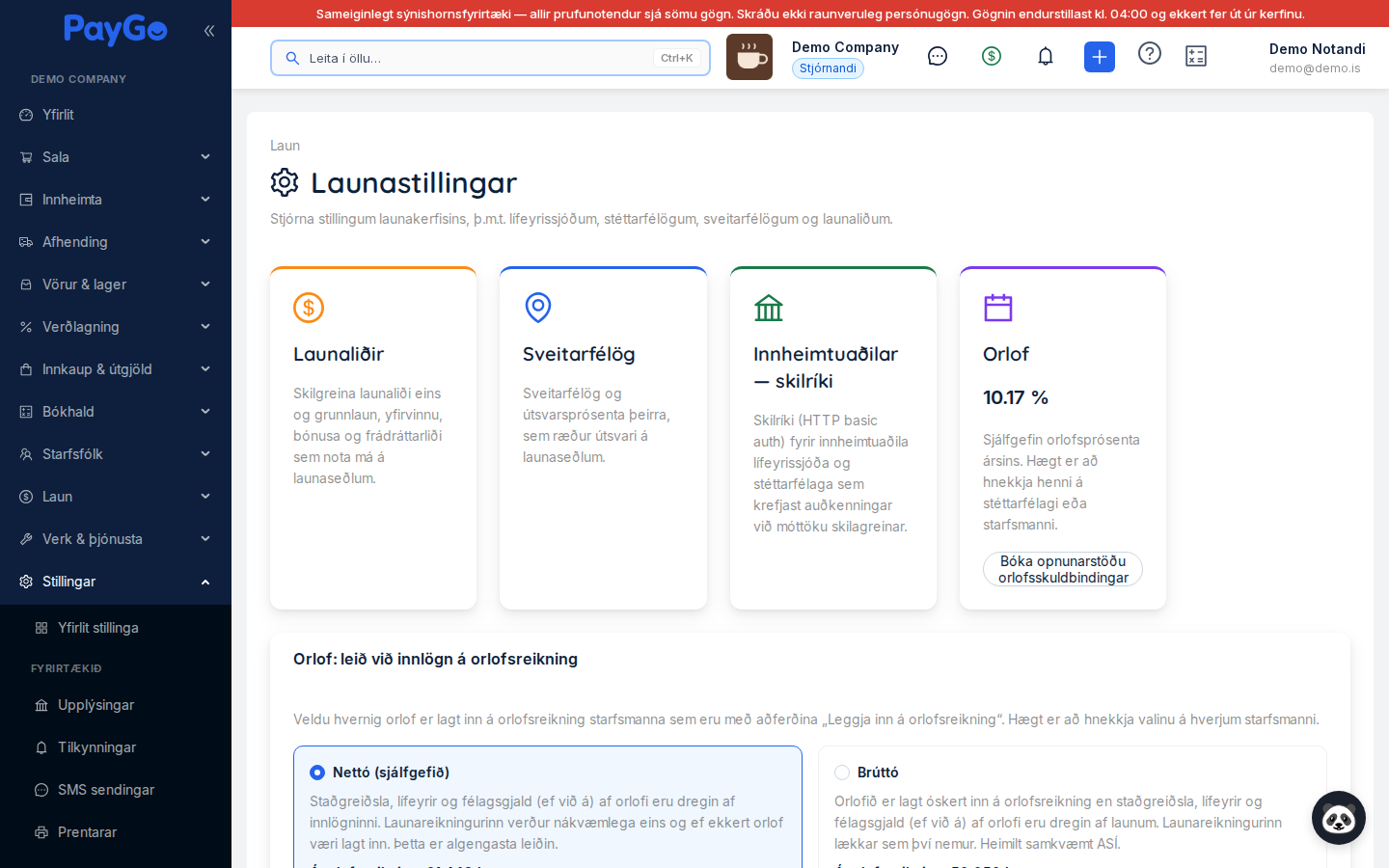
Payroll settings (Settings → Payroll → Payroll settings, or the quick link on the payroll overview) is the hub for the core payroll setup. At the top are cards that open sub-pages for salary items, municipalities and collection agency credentials, plus the Holiday pay card. Below them are company settings that are saved directly on the page: how holiday pay is deposited to the holiday account, what payslips show, how hours are split across salary items and the time clock settings. The page is visible with payroll read permission.
At the top is a breadcrumb (“Payroll”) that goes back to the payroll overview, the heading Payroll settings and the description “Manage payroll settings, including pension funds, trade unions, municipalities and salary items.” The page is made up of these parts, in the order they appear on screen:
| Part | What it does | More |
|---|---|---|
| Salary items (card) | Opens the sub-page where salary items are defined: basic pay, overtime, bonuses, deductions and so on | The “Salary items” section below |
| Municipalities (card) | Opens the list of municipalities and their municipal income tax rates | The “Municipalities (municipal income tax)” section |
| Collection agencies — credentials (card) | Opens the page where credentials are entered for collection agencies of pension funds and trade unions that require authentication when receiving a payroll return | The “Collection agencies — credentials” section |
| Holiday pay (card) | Shows the default holiday pay rate for the year and the “Book holiday pay liability opening balance” button | The “Holiday pay” section |
| Holiday pay: deposit method | Choice between net and gross deposit to the holiday account, with an explanation of withholding tax on holiday pay | The “Holiday pay” section |
| Payslips | A switch that decides whether the employer cost is shown on payslips | The “Payslips” section |
| Time entry | Daily regular-hours limit, salary items for overtime and major public holidays, classification of hours from work orders and shift premium windows | The “Hour classification (Time entry)” section |
| Time clock | Long shift, breaks (meal time) and manager approval before shifts go to payroll | The “Time clock” section |
| Calculator: net vs. gross | Works out an example of both holiday pay deposit methods using the tax settings of the year | The “Holiday pay” section |
Salary items
Salary items are the building blocks of the payslip — e.g. basic pay, overtime, bonuses, benefits and deductions. The items defined here are then assigned to employees in the employee setup and used in payroll processing. At the top of the page is an information banner: “This defines all the salary items that can be used on payslips. Salary items can be earnings, deductions or employer costs.” If any active salary items have unconfirmed rates, a yellow banner above it lists them (see “Default VR values are UNCONFIRMED” below).
Top of the page
There are two actions at the top right:
- Load defaults — compares the company’s salary items with the central list of default salary items. If no item conflicts with the defaults, the missing ones are added straight away (“X salary items added”, or “All default salary items already exist”). If items with the same code already exist but differ from the default, the “Review default salary items” window opens: it shows how many new items will be created and, for each conflicting item, the fields that differ (columns Field, Current and Default). For each item you choose Update or Skip (Skip is the default; quick choice “Update all”/“Skip all”) and confirm. Nothing is deleted. If default values replace an item’s rates, those rates become unconfirmed again.
- New salary item (primary button) — opens a window for creating a new salary item.
| Field | Description | Required |
|---|---|---|
| Search… | Search box that filters by salary item name or code | No |
| Type filter | Drop-down: “All types”, “Earning”, “Deduction”, “Employer cost” | No |
Table view
The table shows all salary items (25 per page). Columns adapt to the screen size — some only appear on larger screens.
| Column | Description |
|---|---|
| Code | Short unique code of the item (e.g. BASE) |
| Name | Name of the salary item (e.g. Base salary). Can be sorted by name. An item with unconfirmed rates gets the tag “Unconfirmed · VR default”, and an item you confirm during the visit gets the tag “Confirmed” |
| Type | Colour tag: Earning (green), Deduction (orange), Employer cost (blue) |
| Calculation | Calculation method of the item (Fixed amount / Percentage / Hourly rate / Formula). Large screens only |
| Rate | Hourly items only: e.g. “0.8235% of monthly salary”, “33% of regular-hours rate” or “Multiplier 1.5” (legacy model). Medium screens and up |
| Taxable | Tag “Yes”/“No” — whether the item is subject to withholding tax. Medium screens and up |
| Pension | Tag “Yes”/“No” — whether the item affects the pension base. Medium screens and up |
| Social security | Tag “Yes”/“No” — whether the item is included in the social security contribution base. Large screens only |
| Status | Colour tag: Active (green) or Inactive (grey) |
| Actions | “Confirm rates” (only when rates are unconfirmed), pencil (edit) and bin (delete, with the confirmation “Delete salary item?”). The bin is disabled for system salary items |
Click “New salary item” to create one, or the pencil icon on a row to edit an existing one. The window title is “New salary item” or “Edit salary item”.
Enter the Code (required, up to 20 characters, e.g. BASE) and the Name (required, e.g. Base salary). The code must be unique — otherwise you get an error that a salary item with that code already exists. The code of a system salary item cannot be changed.
Choose the Type (required, default “Earning”): “Earning”, “Deduction” or “Employer cost”. This decides how the item is treated on the payslip.
Choose the Calculation method (required, default “Fixed amount”): “Fixed amount”, “Percentage”, “Hourly rate” or “Formula”. The fields below change with the choice (see the table below).
Fixed amount → “Default amount” in ISK. Percentage → “Percentage” (0–100, two decimals). Hourly rate → choose a “Rate basis” (% of monthly salary, % of regular-hours rate or Legacy multiplier) and an “Hour class”; with a percentage basis you enter the “Rate percentage” (required, e.g. 0.8235 for overtime 1 under VR), while with “Legacy multiplier” the field “Multiplier (legacy model)” appears instead (see the “Rate model” section below). Formula → no extra values in the window.
Choose the RSK category (withholding tax) — how the item is classified in returns to RSK. The default is “Salary”.
Turn the switches on or off: “Taxable”, “Affects pension”, “Affects holiday pay” and “Included in the social security contribution base”. They decide which bases the item is counted in.
Set the “Sort order” (whole number, 0 or higher, decides the display order) and turn “Active” on or off. Inactive items do not appear in payroll processing.
Click “Create” (new item) or “Save changes” (edit). A confirmation appears: “Salary item created” or “Salary item updated”. Click “Cancel” to close without saving.
| Field | Description | Required |
|---|---|---|
| Code | Unique code, up to 20 characters (e.g. BASE). Locked on system salary items | Yes |
| Name | Name of the salary item (e.g. Base salary) | Yes |
| Type | Earning / Deduction / Employer cost | Yes (default Earning) |
| Calculation method | Fixed amount / Percentage / Hourly rate / Formula | Yes (default Fixed amount) |
| Default amount | Amount in ISK — only appears when the method is “Fixed amount” | No |
| Percentage | Rate 0–100 with two decimals — only appears when the method is “Percentage” | No |
| Rate basis | % of monthly salary / % of regular-hours rate / Legacy multiplier — only appears when the method is “Hourly rate” (a new item defaults to % of regular-hours rate) | No |
| Rate percentage | Percentage with up to 4 decimals (e.g. 0.8235, 1.0385, 1.375 or 33) — with a percentage basis | Yes, with a percentage basis |
| Hour class | Regular hours / Overtime / Major-holiday work / Shift premium | No |
| Multiplier (legacy model) | Multiplier on the regular-hours rate, up to 4 decimals — only appears when the rate basis is “Legacy multiplier” | No |
| RSK category (withholding tax) | See the table “RSK category — options” below | No (default Salary) |
| Taxable | Whether the item is subject to withholding tax | No (on by default) |
| Affects pension | Whether the item counts towards the pension base | No (on by default) |
| Affects holiday pay | Whether the item counts towards the holiday pay base | No (off by default) |
| Included in the social security contribution base | Whether the item is subject to the social security contribution | No (on by default) |
| Sort order | Whole number, 0 or higher, that decides the display order | No (default 0) |
| Active | Whether the item is in use | No (on by default) |
RSK category — options
The RSK category decides which box the item ends up in when reporting to RSK. The box numbers in brackets are those the drop-down shows.
| Option | Description |
|---|---|
| Salary | Ordinary salary (default) |
| Per diem | Per diem payments |
| Vehicle allowance | Driving allowance / mileage payments |
| Company car benefit | Benefit from a car owned by the employer |
| Calculated remuneration | Calculated remuneration of owners/self-employed people |
| Financial activities tax base | Items that make up the base for the financial activities tax |
| Clothing benefits (box 27) | Clothing provided by the employer |
| Housing benefits (box 28) | Housing provided by the employer |
| Meal benefits (box 33) | Meals provided by the employer |
| Other benefits (box 34) | Other benefits |
| Board fees (box 220) | Fees for sitting on a board |
| Sports and fitness grant (box 405) | Sports and fitness grants |
| Commuting grant (box 410) | Commuting grants |
| Reimbursed expenses (box 11) | Reimbursement of costs the employee paid out |
| Other taxable payments (box 82) | Taxable payments that do not fall into another category |
| Other tax-exempt payments (box 93) | Tax-exempt payments that do not fall into another category |
| Grants and donations (box 61) | Grants |
| Sickness benefits (box 19) | Sickness benefits |
Rate model: overtime, major public holidays and shift premiums
Hourly pay, overtime and premiums are calculated from salary items (Payroll settings → Salary items) using a rate basis and a rate percentage. This way the overtime rate follows the employee’s monthly salary instead of being a fixed amount.
Rate basis and rate percentage
- % of monthly salary — the rate is a percentage of the employee’s *reference monthly salary*. This is how VR overtime and major-holiday pay work: e.g. overtime 1 = 0.8235% of the monthly salary.
- % of regular-hours rate — the rate is a percentage of the regular hourly rate. This is how shift premiums work: e.g. a 33% premium = 33% of the regular-hours rate.
- Legacy multiplier — the older model (regular-hours rate × multiplier), still supported for salary items that have not been moved over. VR overtime is *not* a multiplier (0.8235 and 1.0385 are not “multiples of the regular-hours rate”) but a percentage of the monthly salary, so prefer a rate basis and percentage.
How the hourly rate is calculated
- The reference monthly salary is the base salary (the BASE salary item on the employee’s salary table, the full-time amount — not reduced by the employment ratio). If there is none, the regular-hours rate on the salary table (DV) × divisor is used, and after that the employee’s hourly rate × divisor.
- Regular-hours rate = reference monthly salary ÷ divisor. The divisor is the one recorded on the employee, otherwise the “Hourly rate divisor” on the Time entry card on this page, and by default 173.33.
- % of monthly salary: rate = reference monthly salary × percentage. % of regular-hours rate: rate = regular-hours rate × percentage. The rate is rounded to whole ISK before it is multiplied by the hours.
Example: monthly salary ISK 1,024,650 → regular-hours rate ISK 5,912. Overtime 1 (0.8235%) = ISK 8,438 per hour and overtime 2 (1.0385%) = ISK 10,641 per hour.
Order of precedence
If more than one source gives a rate, the one higher in the list applies:
| Priority | Source | Description |
|---|---|---|
| 1 | Fixed rate | An amount in the Rate field on the employee’s line in the salary table (greater than 0) |
| 2 | Employee percentage | The Percentage (%) field on the employee’s line in the salary table, used with the salary item’s rate basis (% of regular-hours rate if the item has none) |
| 3 | Salary item percentage | The rate basis and rate percentage on the salary item itself |
| 4 | Legacy multiplier | Salary item multiplier × regular-hours rate (no multiplier = 1) |
| 5 | No rate | Nothing to work out a rate from: the line pays ISK 0 and the payroll run shows a notice |
Rate fields on a salary item
When the calculation method is “Hourly rate”, the fields Rate basis, Hour class (Regular hours, Overtime, Major-holiday work or Shift premium) and, depending on the rate basis, either Rate percentage (up to 4 decimals) or Multiplier (legacy model) appear. The hour class says what kind of hours the item pays for.
Holiday pay
The Holiday pay card shows the default holiday pay rate for the year (e.g. 10.17%) from the central tax settings. It is read-only here; it can be overridden per trade union or per employee (see Employees). If the rate cannot be read, the card says “The default holiday pay rate for the year is not available here.” The card also has the Book holiday pay liability opening balance button.
Holiday pay liability opening balance
The button books the holiday pay accrued before the holiday pay liability was recorded in the ledger: one journal entry, debit 2205 Holiday pay and credit 4415 Holiday pay liability. It only concerns employees whose holiday pay method is to accrue it.
Choose the “Opening balance date” — the day holiday pay booking started. The window then works out the balance on that day and shows the vacation year and the number of working days per month (from the tax settings of the year).
Expense to the year (2205) charges the holiday pay to this year’s income statement. Adjust equity puts the debit on an equity account you choose (the retained earnings account is preselected if it exists), so holiday pay earned in earlier years does not hit this year’s result.
One line per active employee who accrues holiday pay: Employee, Remaining days, Daily rate, Calculated liability and Amount to book, which you can correct. Calculated liability = remaining days × monthly salary ÷ working days per month, rounded to a whole ISK. The monthly salary is the base salary from the salary table, otherwise hourly rate × 8 h × employment ratio, otherwise the monthly salary from the employee record.
Below the table are “Total to book”, “Current balance of 4415” and “Difference” (the total to book minus the posted balance of 4415 on the date).
Click “Book opening balance” and confirm “Book the holiday pay liability opening balance?”. Once the entry is booked its number appears together with the “View journal entry” button.
Holiday account deposit method
The Holiday pay: deposit method card decides how holiday pay is deposited to the holiday account of employees using the “Deposit to holiday account” method. The choice applies to the company but can be overridden per employee. Choose a method and click Save method (the button turns green with “Saved”). A user without permission to change it sees “You do not have permission to change this setting.”
| Method | What happens | Example on the card |
|---|---|---|
| Net (default) | Withholding tax, pension and union dues (if any) on the holiday pay are deducted from the deposit. The salary account ends up exactly as if no holiday pay were deposited. The most common method. | To holiday account ISK 31,449, to salary account ISK 401,340 |
| Gross | The holiday pay is deposited in full to the holiday account, while withholding tax, pension and union dues (if any) on it are deducted from the salary. The salary account is reduced accordingly. Permitted under the ASI agreement. | To holiday account ISK 50,850, to salary account ISK 381,939 |
Payslips
The Payslips card has one switch: Show employer cost on payslips. It is off by default; then employees do not see the employer pension contribution, social security contribution and other payroll-related charges on their payslip. The switch applies to payslips as PDF and by email and is saved as soon as you click it (“Setting saved”).
Hour classification (Time entry)
The Time entry card controls the import of hours from work orders and the quick actions in time entry: how hours are split across salary items, the hourly rate divisor and shift premiums. Changes are saved with Save settings. At the bottom of the card the rules are summarised, with a reminder that the defaults follow the VR/SA general collective agreement but are unconfirmed.
| Field | Description | Default |
|---|---|---|
| Daily regular-hours limit (h) | Maximum regular hours on a weekday; used by “Fill weekdays” in time entry (0.25–24, step 0.25) | 8 |
| Salary item for overtime 1 | The salary item overtime 1 goes to | OT1 |
| Salary item for overtime 2 | The salary item overtime 2 goes to | OT2 |
| Salary item for major public holidays | The salary item hours on major public holidays go to | HOLIDAY |
| Weekday regular-hours window | From–to (HH:MM); weekday hours inside it can go to regular hours | 08:00–17:00 |
| Hourly rate divisor | Reference monthly salary ÷ divisor = regular-hours rate (1–999.9999); a divisor on the employee takes precedence | 173.33 |
| Full-time hours per month | “Working days × daily regular hours × employment ratio” or “Fixed number (the divisor)”, which is the divisor × employment ratio | Working days × daily regular hours × employment ratio |
| Overtime split | “Two tiers” (overtime 1 up to full time for the month, overtime 2 beyond it) or “One tier” (all overtime on the overtime 1 item); the split can be overridden per employee | Two tiers |
| Shift premium (shift workers) | Windows (from, to, shift premium item) for weekdays, weekends and other public holidays, and major public holidays. “Add window” and a bin; windows of the same day type must not overlap and each window needs a salary item | Weekdays 00:00–08:00 VAKT45 and 17:00–24:00 VAKT33; weekends 00:00–24:00 VAKT45; major public holidays 00:00–24:00 VAKT90 |
| Rule | How it works |
|---|---|
| Regular hours | Weekday hours inside the regular-hours window go to Regular hours (DV) up to the daily limit, as long as the month’s total hours are within full time. Full time is calculated with the employee’s employment ratio. |
| Overtime (two tiers) | Other hours go to overtime 1 while the month’s total hours are within full time and to overtime 2 beyond that. An hour that crosses the limit is split between the tiers. |
| Overtime (one tier) | All hours outside regular hours go to the overtime 1 salary item. |
| Major public holidays | New Year’s Day, Good Friday, Easter Sunday, Whit Sunday, 17 June, Christmas Eve from 12:00, Christmas Day and New Year’s Eve from 12:00. Hours on these days go to the major holiday item. |
| Other public holidays | Other statutory public holidays (e.g. Maundy Thursday, Easter Monday, Ascension Day, Whit Monday) are overtime, not major public holidays. For shift premiums they use the weekend windows. |
| Shift workers | An employee marked “Shift worker” gets all hours as regular hours (with no daily limit) until full time for the month is reached, plus the shift premium item when the hours fall in a shift premium window. Beyond full time the hours are overtime without a premium; major-holiday hours then go to the major holiday item. |
Time clock
The Time clock card comes after the Time entry card and holds the time clock settings: long shift, breaks (meal time) and manager approval. Changes are saved with Save.
- Long shift (h) — a shift longer than this is marked as long and asks “When did you finish?” at clock-out.
- Breaks — four options: No breaks (breaks are not recorded and nothing is deducted from shifts), Automatic deduction (a fixed deduction, an unpaid break, on shifts longer than a set number of hours), Clock breaks (staff clock breaks in and out and unpaid breaks are deducted) and Both (breaks can be clocked, but if the clocked unpaid breaks are shorter than the automatic deduction, the deduction applies — nothing is ever deducted twice).
- Manager approval for payroll — the card shows from what time approval is required. Shifts that started before that time count as approved for payroll, but later shifts only go to payroll once a manager has approved them. The time can be moved back with the Move button but not forward.
Rate notices
On the payroll period a “Rate notices” box appears. The notices do not block anything, but review them before the payroll run is approved:
- Overtime rate below the regular-hours rate — a salary item pays less than regular hours.
- Employee hourly rate differs from the regular-hours rate on the salary table — the regular-hours rate on the salary table is used.
- Base salary ÷ divisor ≠ regular-hours rate on the salary table (difference above ISK 1) — align the base salary and the regular-hours rate.
- Employee hourly rate differs from base salary ÷ divisor — the base salary is used and the hourly rate on the employee is ignored.
- Base salary reduced by the employment ratio — a part-timer’s paid base salary is base salary × employment ratio, so the base salary on the salary table must be the full-time salary; if it is already entered reduced, it is reduced twice.
- Overlapping rate change — more than one line for the same salary item applies in the period; only the one in effect at the end of the period is used.
- Unconfirmed salary item rates — see the warning above.
- Time line pays ISK 0 — no rate is found for the line.
Collection agencies — credentials
Some collection agencies of pension funds and trade unions require authentication (a username and password issued by the agency) when a payroll return is sent electronically. This page automatically lists the collection agencies your employees pay into (worked out from the employees’ pension funds/trade unions) and lets you enter credentials and test the connection for those that require it. The “Payroll settings” breadcrumb goes back to the hub.
| Column | Description |
|---|---|
| No. | The agency’s collector number. Can be sorted |
| Collection agency | Name of the agency with its national ID (kennitala) below. Can be sorted by name |
| Employees | Number of employees who pay into the agency. Can be sorted |
| Username | Registered username of the credentials, or “—” if none |
| Status | Colour tag for the authentication status (see the table below) |
| Actions | “Set up” or “Edit”; when credentials exist also “Test connection” and “Delete”. Agencies that do not require authentication show “—” |
| Status | Colour | Meaning |
|---|---|---|
| Does not require credentials | Grey | The agency accepts payroll returns without authentication — no credentials needed |
| Credentials missing | Yellow (warning) | The agency requires authentication but no credentials are registered |
| Inactive | Grey | Credentials are registered but the “Active” switch is off |
| Connection confirmed | Green | Credentials active and the last test succeeded (date in the tooltip) |
| Connection failed | Red | The last test failed (error message in the tooltip) |
| Credentials set — untested | Blue | Credentials are active but the connection has not been tested |
Agencies that require authentication but lack credentials are marked “Credentials missing” (yellow). Agencies marked “Does not require credentials” need nothing (the actions column shows “—”).
Click “Set up” (key icon) for a new agency, or “Edit” (pencil) for an agency that already has credentials. The window shows the address of the agency’s web service that the credentials will be sent to (it can be copied).
Fill in “Username” (required) and “Password” (required). When the agency already has credentials, the field is called “New password (enter to change)” — leave it empty if you do not want to change the password.
Set the “Active” switch (Yes/No). Only active credentials are used when a payroll return is sent.
Click “Save”. A confirmation appears: “Credentials saved”. Click “Cancel” to close without saving.
After saving, the lightning icon “Test connection” appears in the actions column. Click it to confirm that the credentials work. On success you see “Connection succeeded (HTTP …)”; otherwise “Connection failed: …” and the status turns red.
| Field | Description | Required |
|---|---|---|
| Username | Username issued by the collection agency | Yes |
| Password | Password for the authentication; stored encrypted and never shown again. When editing: leave empty to keep it unchanged | Yes (when first entered) |
| Active | Whether the credentials are used when sending the payroll return | No (default Yes) |
Municipalities (municipal income tax)
Municipal income tax is the part of income tax that goes to the municipality, and it depends on where the employee is legally domiciled. The municipal income tax rate of each municipality is kept in a separate municipality register used in the payroll calculation (withholding tax). The register is central — the same list and the same rates apply to all companies. The Municipalities page opens from the “Municipalities” card on Payroll settings.
At the top of the page is a breadcrumb (“Payroll / Settings”), the heading Municipalities and an information banner: “Municipalities and their municipal income tax percentage are registered here. Municipal income tax is part of income tax and depends on where the employee is legally domiciled.” Below it is a search box (“Search for a municipality…”) that filters by name or code.
Top of the page
There are two actions at the top right:
- Load defaults — adds a list of Icelandic municipalities with their municipal income tax rates (only adds those not already present, matched by code; deletes nothing and changes nothing already there). A message appears: “X municipalities added”.
- New municipality (primary button) — opens a window for creating a new municipality.
| Column | Description |
|---|---|
| Name | Name of the municipality (e.g. Reykjavik City). Can be sorted by name |
| Code | Code of the municipality (e.g. 0000), or “-” if none |
| Municipal income tax % | The municipal income tax rate with two decimals and a full stop as the decimal separator (e.g. 14.94%), right-aligned. Can be sorted |
| Status | Colour tag: Active (green) or Inactive (grey) |
| Actions | Pencil (edit) and bin (delete with confirmation) |
Click “New municipality” to create one, or the pencil icon on a row to edit an existing one. The window title is “New municipality” or “Edit municipality”.
Enter the Name (required, e.g. Reykjavik City) and, if applicable, the Code (optional, up to 10 characters, e.g. 0000). The code must be unique — otherwise you get an error that a municipality with that code already exists.
Enter the Municipal income tax (%) (required) — a number field with the range 0–20, step 0.01 and two decimals, with “%” after it. The default value in a new window is 14.94.
Set the Active switch (on by default). Inactive municipalities are shown with a grey status and are excluded from the active list that the municipal income tax choice is based on.
Click “Create” (new) or “Save changes” (edit). A confirmation appears: “Municipality created” or “Municipality updated”. Click “Cancel” to close without saving.
| Field | Description | Required |
|---|---|---|
| Name | Name of the municipality (e.g. Reykjavik City) | Yes |
| Code | Unique code, up to 10 characters (e.g. 0000) | No |
| Municipal income tax (%) | Municipal income tax rate, 0–20 with a step of 0.01 and two decimals | Yes |
| Active | Whether the municipality is in use | No (on by default) |