
Task board
Task boards are Kanban boards for task management. You will find them under Task board in the sidebar. The overview page shows all your boards — both private boards and shared boards — and lets you create new ones. You open a board to work with the cards (tasks), which are arranged in columns that you set up yourself to match your workflow. Use task boards when you want to follow tasks through stages such as “To do”, “In progress” and “Done”, assign work to staff and keep track of sub-tasks with checklists.
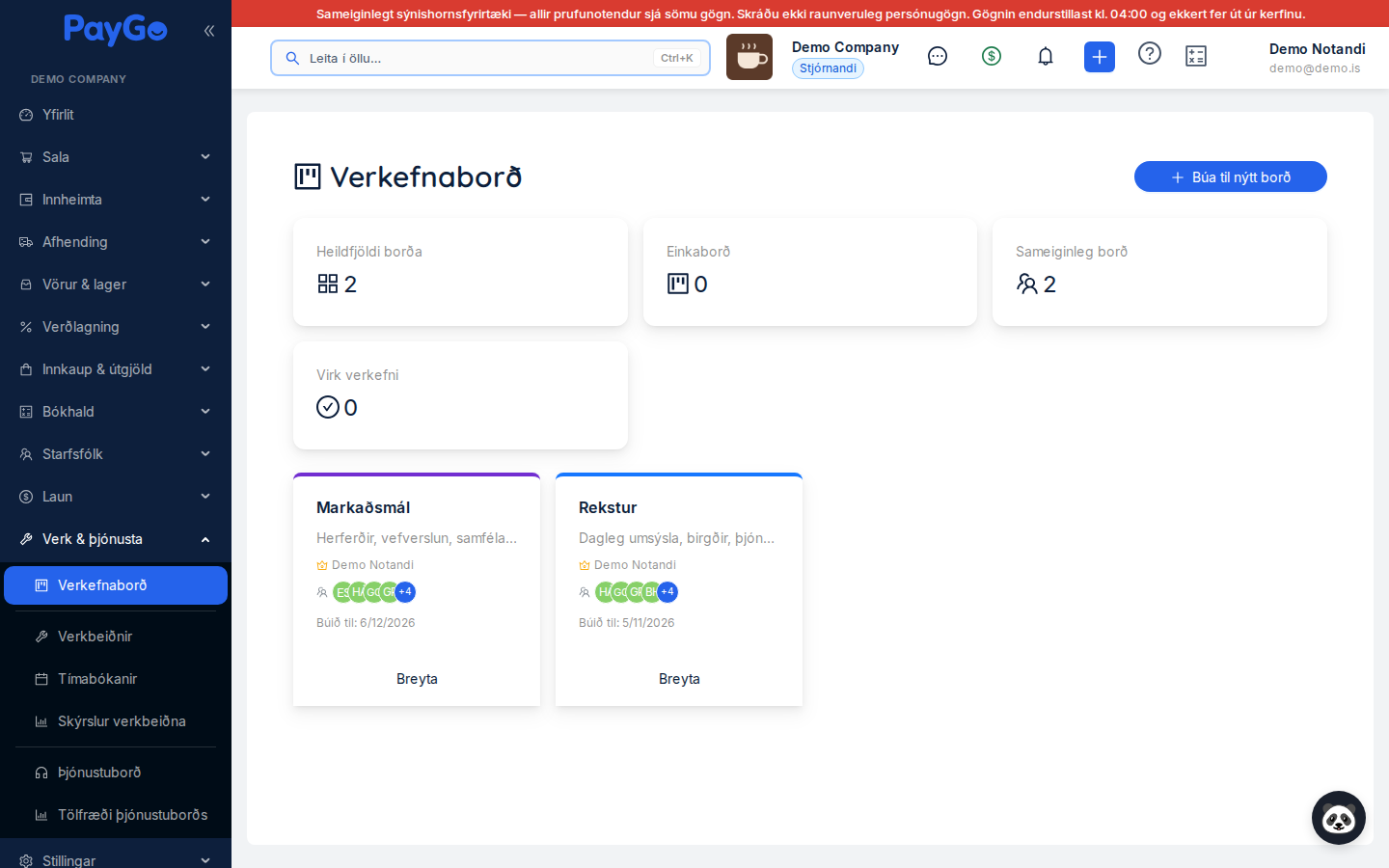
Task board overview page. At the top is the heading “Task board” and the Create new board button. Below it are four statistics tiles: Total boards, Private boards, Shared boards and Active tasks. The boards themselves are shown as a grid of cards. Each card shows the board name, a “Private” badge if it is a private board, the description (or “No description”), the board owner (with a gold crown), the members (as round initials) and the “Created:” date. Click the card to open the board, or click Edit at the bottom of the card to change its basic settings. If no boards are found, “No task boards found” is shown together with the Create your first board button.
| Field | Description |
|---|---|
| Name | The board name, shown at the top of the card and in the header when the board is opened |
| Private badge | A blue “Private” badge is shown if the board is a private board (only visible to the owner and members) |
| Description | A short description of the purpose of the board, or “No description” if empty |
| Owner | The person who created the board, shown with a gold crown (OWNER) |
| Members | Round initials of the people the board is shared with (other than the owner) |
| Created | The date the board was created, in Icelandic format |
Click Create new board at the top of the overview (or Create your first board if you do not have any yet). The “Create new task board” dialog opens.
Fill in Board name (required, up to 100 characters) — e.g. “Marketing”, “Development” or “Q1 tasks”.
Write an optional Description (up to 500 characters) explaining the purpose of the board.
Choose a Board colour (blue by default, #2563EB), which is shown as a stripe at the top of the card. Set Private board to “Yes” if the board should only be visible to you and its members, otherwise “No”.
Click Create. The message “Task board created” is shown and the board appears on the overview. You automatically become its Owner.
| Field | Description | Required |
|---|---|---|
| Board name | The name of the board, up to 100 characters | Yes |
| Description | A short description of its purpose, up to 500 characters | No |
| Board colour | Colour (hex) shown as a stripe on the card, #2563EB by default | No |
| Private board | Yes/No switch — whether the board is private or shared | No |
Opening a board. Click the board's card to open the Kanban view. At the top is the Back button (back to the overview), the board name, a colour badge, a “Private” badge where applicable, and the board description below. On the right are three buttons: Pin to quick menu (pins the board to the quick links in the sidebar), Members (opens the members dialog) and Add column (creates a new column). The board itself is a row of columns that you can scroll through horizontally.
Columns. Each column represents a stage in the workflow. At the top of a column is its name, and the blue number shows how many cards are in the column. Next to it are a pencil icon (rename the column) and a bin icon (delete the column). At the bottom is the Add card button for creating a new card in the column. The columns are not fixed — you set them up yourself to suit your workflow.
Click Add column at the top of the board. The “Create new column” dialog opens. Enter a Column name (required, up to 100 characters) — e.g. “In progress”, “Done” or “On hold” — and click Create. The message “Column created” is shown.
Click the pencil icon at the top of the column. The “Edit column” dialog opens with the current name. Change it and click Save (“Column updated”).
Click the bin icon at the top of the column. A confirmation dialog appears: “Delete column? This will also delete all cards in this column.” Click Yes, delete to delete the column and all cards in it (“Column deleted”).
Cards (tasks). Cards appear in the columns and show the title, a short description (up to two lines), a priority badge (coloured by priority), the due date if one is set, labels and the round initials of the people the task is assigned to. The left edge of the card is coloured by priority. Click a card to open it and edit all of its details.
Click Add card at the bottom of the column you want to put the card in. The “Create new card” dialog opens.
Enter a Title (required, up to 200 characters) and an optional Description (up to 2000 characters) describing the task in detail.
Choose a Priority (required — Low, Normal, High or Urgent), an optional Due date (in the format DD.MM.YYYY) and an optional Estimated hours value (maximum 9,999.99; e.g. 2.5). The estimate is shown as a badge on the card.
In Assigned to, select one or more employees who are responsible for the card. In Labels, enter free-text labels (e.g. “important”, “waiting”) separated by commas.
Click Create. The message “Card created” is shown and the card appears at the bottom of the column.
| Field | Description | Required |
|---|---|---|
| Title | The name of the task, up to 200 characters | Yes |
| Description | A detailed description of the task, up to 2000 characters | No |
| Priority | Low, Normal, High or Urgent — sets the colour of the card's left edge | Yes |
| Due date | The date by which the task should be completed (DD.MM.YYYY) | No |
| Estimated hours | Estimated hours (up to two decimals, maximum 9,999.99). 0 is a valid value — a deliberate estimate of no time | No |
| Assigned to | One or more employees responsible for the card | No |
| Labels | Free-text labels for categorisation, separated by commas | No |
Checklist. A Checklist section is available in both the “Create new card” and “Edit card” dialogs. When you create a card, the items are collected as a draft and saved, in order, as soon as the card is created; if saving them fails, the card is still created and you get a warning. There you can break the task down into smaller items. The heading shows the proportion of completed items (e.g. “3/5 done”). To add an item, type text in the Add item… field and press Enter or click the plus icon. You can assign each item to an employee with the Assign tag. Tick an item to mark it as done — it then shows who completed it and when (“Checked by …”). Each item also shows “Created by …”. The bin icon deletes an item after confirmation (“Delete item?”).
Comments. At the bottom of the card dialog is a comment thread (when creating a card, the comment is saved as soon as the card is created) under the heading “Comments (n)”. Type in the “Write a comment… (use @ to tag)” field and click Add comment (or press Ctrl+Enter). You can tag colleagues with @ — they receive a notification. Each comment shows the author, the date and how long ago it was posted. Only the author of a comment can delete it.
Click the card to open the “Edit card” dialog. Change the title, description, priority, due date, assignment or labels and click Save changes (“Card updated”).
Drag the card with the mouse to another column to update its status. The change is saved automatically. If you do not have permission, the message “You do not have permission to move cards on this board” is shown.
Open the card and click Delete at the bottom left. A confirmation dialog appears: “Delete card? Are you sure you want to delete this card?” Click Yes, delete (“Card deleted”).
| Priority | Colour | Value |
|---|---|---|
| Urgent | Red | URGENT |
| High | Orange | HIGH |
| Normal | Blue | MEDIUM |
| Low | Green | LOW |
Board members. Click Members in the header to open the “Board members” dialog. There you can see everyone who has access to the board together with their role. To add a new member, select a user from the dropdown, choose a role (Admin, Member or Viewer) and click Add (“Member added”). You can change each member's role directly in the list and remove a member with the bin icon (“Remove member?”). The owner (OWNER) cannot be removed.
| Role | Colour | Permissions |
|---|---|---|
| Owner | Gold | Full access: edit the board, delete the board, manage members, all cards and columns. Only the owner can delete the board. |
| Admin | Purple | Can add and remove members, and work with columns and cards. |
| Member | Blue | Can create, edit and move cards and columns. Cannot manage members. |
| Viewer | Grey | Can only view. Cannot create, edit, move or delete cards or columns. |