
Time entry
Time entry (Payroll → Time entry, the /dashboard/payroll/timesheets route) is a monthly grid for one employee at a time: one row per day of the month and one column per hourly salary item (e.g. DV regular hours or OT1 overtime 1). The page is mainly meant for hourly staff, but you can record hours for any employee with active payroll, e.g. overtime for salaried staff. Saved hours are paid in the payroll run that covers the days — see "Hours in the payroll run" below.
Read access to payroll is enough to view the page. Recording hours, using the quick actions, saving and getting hours from work orders require write access to payroll; without it the grid is read-only.
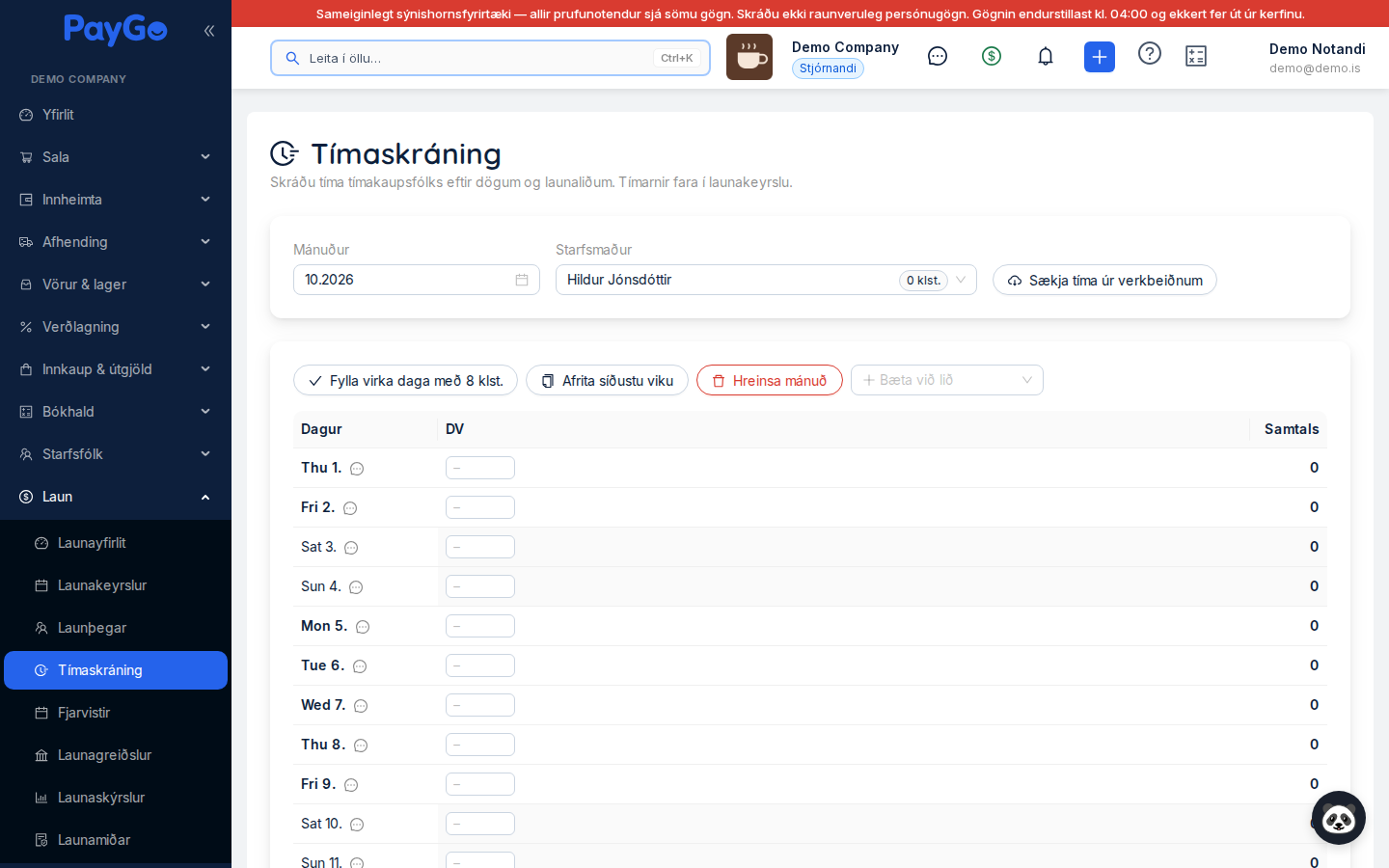
Month and employee
At the top of the page are Month (a month picker that opens on the current month) and Employee (a searchable list). Employees are grouped into "Hourly" and "Monthly salary", hourly staff first, and each shows the saved hours for the selected month, e.g. "172 h". The first employee in the list is selected automatically. With write access the "Get hours from work orders" button also appears.
The Time entry button on a payroll run page also opens this page on the current month — pick the run's month if it is a different one.
The grid
The Day column shows the weekday and date, the holiday name where relevant, a padlock if the day is locked, and the speech-bubble Note button (free text for the day, at most 255 characters). Next come the salary items — DV (regular hours) is always first, then items with hours recorded in the month and items you add — and finally a Total for each day. At the bottom are the Total row (hours per item and the month's total) and the Rate row (see "The rate row" below).
Each cell takes 0–24 h with up to two decimals (e.g. 7.5 or 7.25). Enter moves you to the same item on the next unlocked day. Weekends are grey and public holidays are tinted and named. Cells that came from work orders carry a blue "Work order" tag; if one has been edited since the import the tag turns orange, "Edited (was X h)".
Locked days: Days that belong to a payroll run for the employee that has been approved (or has gone further) are locked: a padlock appears and neither the hours nor the note can be changed until the run is reopened ("Reopen" puts it back to Draft). Days in a run with the status Draft or Calculated are open.
On a narrow screen (phone) one salary item is shown at a time; pick the item with the button bar above the grid.
| Quick action | Description |
|---|---|
| Fill weekdays with {hours} h | Fills empty DV cells on every weekday (Mon–Fri) of the month with the tenant's daily regular-hours limit (8 h by default, set in Payroll settings). Weekends, public holidays and locked days are skipped; Christmas Eve and New Year's Eve get half a day. Cells that already have hours are left as they are. |
| Copy last week | Finds the last week (Mon–Sun) with recorded hours and copies its hours on every item onto the following week. Days outside the month, locked days and public holidays in the following week are skipped. If there is nothing to copy, a message says so. |
| Clear month | Resets every unlocked cell in the month to zero after a confirmation. Nothing is saved until you click "Save". |
| Add item | Adds an hourly salary item to the grid as a column (shown as "CODE – Name"). Only active hourly items not already in the grid are offered. |
Get hours from work orders
The "Get hours from work orders" button opens a dialog that brings hours technicians have logged on work orders into time entry — including work time from the Time clock, which is ordinary time logged on work orders. Only finished time logs count; logs still running or longer than 7 days are not imported. The dialog shows the period (the whole selected month) and the Employees choice: "All employees" or "Selected employee only".
The dialog starts with a preview — nothing is written until you click Import and confirm ("Import hours from work orders?"). The import only writes imported rows, never hours you entered manually, and it is safe to run again: a re-import updates the rows but does not duplicate them.
| Preview column | Meaning |
|---|---|
| Employee | The employee the hours belong to. |
| Days | Number of days with imported hours in the period. |
| Hours | Hours per salary item, e.g. "DV 152 · OT1 12". |
| New | Rows that are added. |
| Updated | Rows that existed and get a new value, e.g. because the time on a work order changed or the month's split shifted. |
| Unchanged | Rows that already match the work orders. |
| Edited by payroll | Rows edited in time entry after the import — the import does not overwrite them. |
| Deleted in work orders | Rows imported earlier whose time log has since been deleted (or no longer yields that item). Their hours are set to 0. |
| Locked | Rows on days in an approved payroll run — they are skipped. |
How imported hours are split across salary items
Imported hours are classified by time of day and the month's running total, per employee and calendar month, taking the month's manually entered hours into account:
- Hours on a weekday inside the regular-hours window (08:00–17:00 by default) go to regular hours (DV) until the daily regular-hours limit or the month's full-time hours are reached.
- Other hours — outside the regular-hours window, at weekends, on public holidays, and regular hours beyond the limits — go to overtime. With the two-tier split, overtime goes to overtime 1 until regular hours plus overtime 1 fill the month's full time, and the rest to overtime 2; with a single tier, all overtime goes to overtime 1.
- Hours on major public holidays go to the major-holiday item.
- For a shift worker, hours go to regular hours plus a shift premium by time of day until the month's full time is reached; after that the overtime rules apply (major-holiday hours then go to the major-holiday item).
The salary items, the daily limit, the regular-hours window, full time and the tier split are set on the Time entry card in Payroll settings; the overtime split and shift work for an individual employee are described on Payroll employees.
Manually entered regular hours count towards full time, but manual hours themselves are never reclassified — they are paid on the item you chose. If you change manual hours after an import, get the hours from work orders again so the split of the imported hours is updated.
The rate row
The bottom row of the grid, Rate, shows the hourly rate each salary item pays the employee, worked out with the same rate model the payroll run uses (the order of precedence is described under "Rates" on Payroll employees). Hover over a rate to see how it was derived: a fixed amount on the salary table, or a percentage (the employee's or the salary item's) and the monthly salary or regular-hours rate it is taken of. If there is no reference salary, the rate is 0 kr. and the tooltip says so. If the rate cannot be loaded, "–" is shown ("Rate unavailable").
The rate in the row is based on the employee's salary table as it stands today; the payroll run works out the rate itself for its own period. The row is for information — the hours you record always go to the item you choose.
At the top of the page. The first employee in the list (hourly staff are at the top) is selected automatically.
Click "Get hours from work orders", review the preview and click "Import".
Enter hours in the cells or use "Fill weekdays" / "Copy last week". Add an item with "Add item" and a note with the speech bubble next to the day.
The "Total" column and row update as you type; the tag next to the employee in the selector shows saved hours. The "Rate" row shows the hourly rate for each item.
Click "Save". The button turns green and reads "Saved", and the message "Time entries saved" appears.
Open the payroll run for the period and click "Calculate payroll" so the new hours reach the payslips.
Hours in the payroll run
When a payroll run's payslips are created, and each time it is calculated with the status Draft or Calculated, the employee's saved hours on days within the run's period are totalled per salary item and put on the payslip as automatic lines marked Time entry: units = the hours, rate per the rate model. These lines are locked in the "Edit salary lines" dialog — change the hours here and calculate the run again. If the employee has a standing quantity on the same item in the salary table, the run pays the hours from time entry instead of the standing quantity.
The hours are not reclassified in the payroll run: each hour is paid on the salary item it is recorded on here. Once the run has been approved its days are locked in time entry (see "Locked days" above).
Related modules
- Pay basis and rates: the employee's hourly rate, percentage and divisor are on Payroll employees.
- Time entry settings: the daily regular-hours limit (used by "Fill weekdays"), the overtime and major-holiday items, the regular-hours window and full time are in Payroll settings.
- Work orders and time clock: technicians' hours on work orders and work time from the Time clock come in through "Get hours from work orders". Time-clock hours not logged against a job do not reach time entry.
- Payroll runs: see Payroll runs.