
Contracts
Contracts are PDF documents generated from the company’s contract templates (Settings → Sales → Contract templates, see the Contract templates page). A template contains variables — customer name, quote number, amount, validity, contact and more — which are filled in automatically from the quote or sales order the contract is created from.
Creating a contract: open a quote or sales order and click Create contract (the button is shown to users with write permission for contracts). The dialog has three steps:
- Template — choose one of the active templates. If there are none, the dialog says so; an administrator gets a button that opens the settings, others are asked to request a template from an administrator.
- Variables — optionally choose a contact and review the variables. All can be edited; the template’s free variables must be filled in before you continue. The quote’s/order’s line table is included and the dialog tells you how many lines it has.
- Preview — the final PDF is shown. Click Create contract to save it.
The contract gets a running number (SAM-0001, SAM-0002, …). The PDF is also stored as an attachment on the quote/order and is included when the document is emailed (it can be left out in the send dialog).
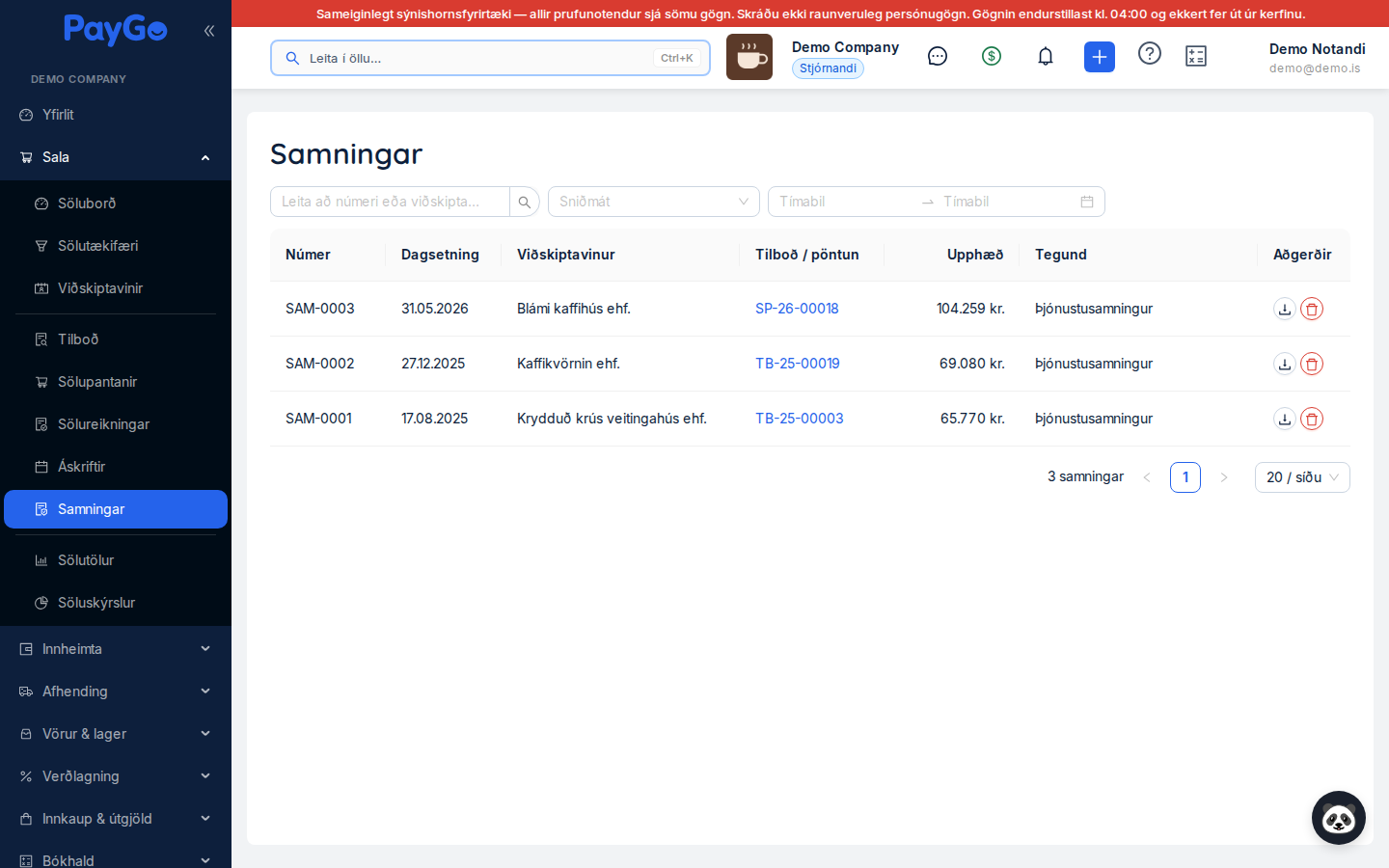
The list (Sales → Contracts) shows all contracts, newest first, with the columns Number, Date, Customer, Quote / order (a link to the source document), Amount, Type (template name) and Actions. There are three filters at the top:
- Search by number or customer (searches after a short pause while you type).
- Template — shows only contracts from the chosen template.
- Period — from and to the contract date.
In the actions column the download button fetches the PDF. The red bin button deletes the contract (only shown to users with write permission; you are asked to confirm) and also removes the PDF and the attachment on the quote/order. If the source document is gone, the Quote / order column shows “—”. At the bottom you can choose the page size and see the total number of contracts.
On the sales board the Contracts tab shows the selected customer’s contracts in a compact version of the same table (without the filters).