
Quotes
Quotes are formal price quotes that you send to customers before an order is placed. Each quote has a quote number, a validity period (“Valid until”) and a status. Once a quote has been marked as accepted, it can be converted into a sales order with a single click — all lines, prices and discounts are carried over automatically.
The page is split into two parts: the quote list (an overview of all quotes with summary cards, filters and actions) and the quote page (full details of a single quote: lines, gross margin, email history and actions).
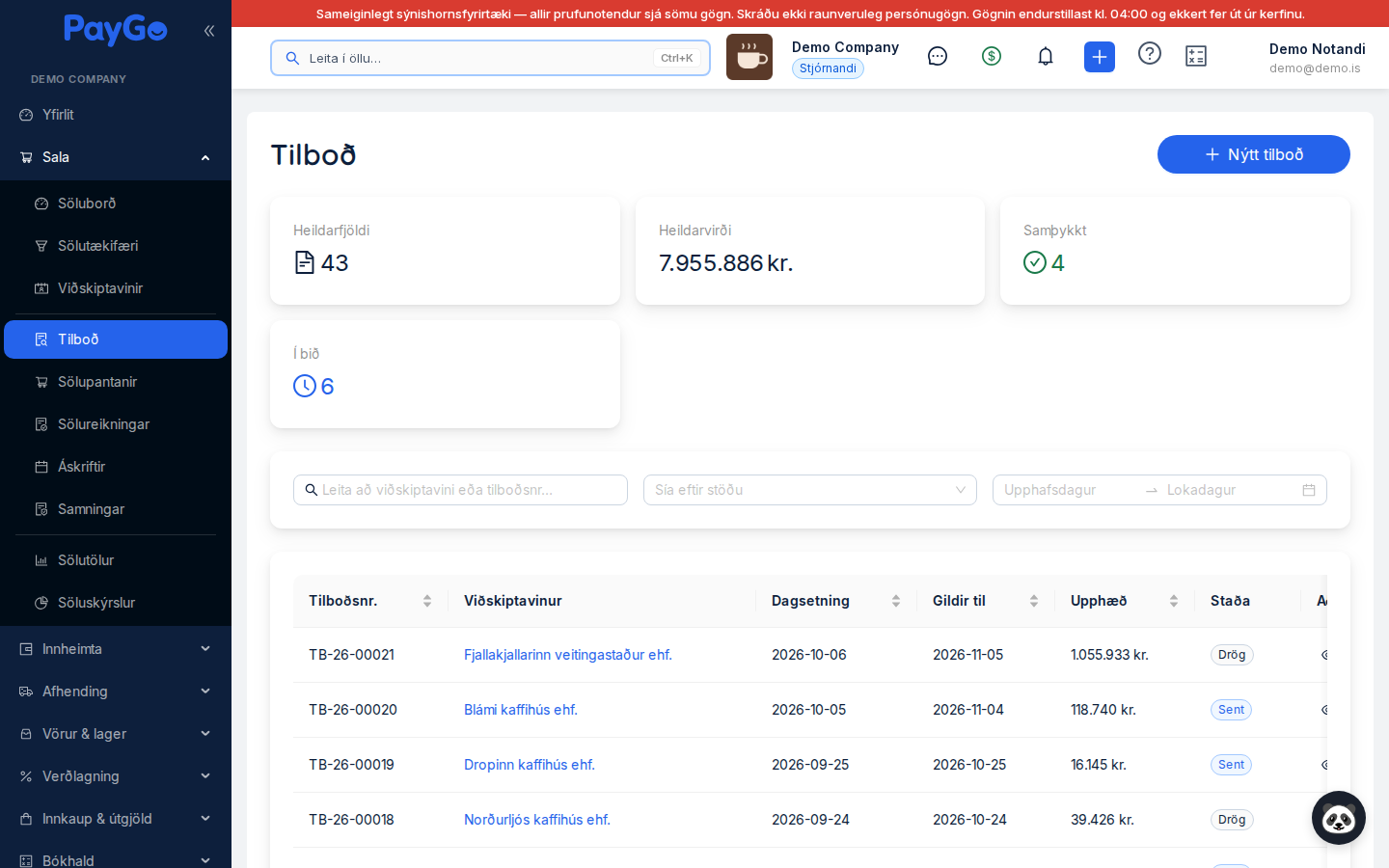
Summary cards at the top
At the top of the quote list are four cards that give an overall picture (based on statistics for the whole company, not just the visible page):
- Total count — the number of all quotes.
- Total value — the combined amount of all quotes, e.g.
1.024 kr. - Accepted — the number of quotes with the status “Accepted” (green).
- Pending — the number of sent quotes awaiting a response (blue).
| Column | Description | Sortable |
|---|---|---|
| Quote no. | The quote number (e.g. TB-00001). An automatic sequence number with a prefix taken from the sales settings. | Yes |
| Customer | Customer name — clickable, and opens the Sales board for the customer. Below it the note/request number and a short version of the notes are shown, if any. | No |
| Date | The issue date of the quote. | Yes |
| Valid until | The last day of the validity period. After this date the quote may expire. | Yes |
| Amount | The total amount of the quote including VAT, in Icelandic format (e.g. 1.024 kr.). | Yes |
| Status | The colour-coded status of the quote, in English (see the status table below). | No |
| Actions | Buttons on each row: View, Download PDF and Print. | No |
Search, filters and actions in the list
- Search box (“Search for customer or quote no.…”) — searches instantly (with a 300 ms delay) by customer name or quote number.
- Filter by status — a dropdown with Draft, Sent, Accepted, Rejected, Expired and Converted to order. It can be cleared.
- Date picker — a date range (“From date” – “To date”) shows only quotes whose issue date falls within the range, both ends included. The list returns to the first page when the range is changed.
- Sorting — click a column header (Quote no., Date, Valid until or Amount) to sort.
- Pagination — at the bottom you can choose the number of rows per page; the text “Total X quotes” shows the total count.
- New quote — a button in the top right-hand corner that opens the Sales board.
Clicking anywhere on a row (not just an action button) opens the quote page.
| Button | Icon | Description |
|---|---|---|
| View | Eye | Opens the detailed quote page. |
| Download PDF | Download | Downloads the quote as a PDF (saved as tilbod-<quote no>.pdf). |
| Printer | Opens the quote PDF for printing in the browser. |
The quote page — overview
When you open a quote you see all its information on one page: a header with action buttons, an information card with the customer, dates, amounts and gross margin, together with a table of all quote lines with totals.
| Field | Description |
|---|---|
| Customer | The name of the customer the quote is addressed to. |
| Date | The issue date of the quote (DD.MM.YYYY). |
| Valid until | The last day of the validity period. |
| Entered by | The employee/user who created the quote. |
| Total amount excluding VAT | The sum of the lines excluding VAT. |
| VAT | The calculated VAT. |
| Total amount including VAT | The final amount the customer pays. |
| Cost price | The combined cost price of the lines. Hidden behind a blur (hover to reveal). |
| Gross margin | Gross margin = net sales − cost, with a percentage and colour indicator. Hidden behind a blur. |
| Note / Request no. | An editable field — click it to enter or change a note or request number. |
| Notes | Free text that accompanies the quote (if entered). |
| Terms | The terms of the quote (if entered). |
| Revised from / Revised in | A purple “From TB-…” tag if the quote was created with Revise quote, and blue “Revised in TB-…” tags on the quote that was revised. Click a tag to go to the other quote. |
| Shows whether the quote has been sent by email (“Sent” or “Not sent”), with a history (date, email address, sender, message) and the Send / Resend button. |
| Field | Description |
|---|---|
| SKU | The product's SKU (empty for free-text lines without a product). |
| Description | The name/description of the line, with a sub-description below it if present. |
| Quantity | The number of units. |
| Unit price | The price per unit excluding VAT. |
| Discount | Discount percentage — the column only appears if at least one line has a discount. |
| VAT % | The VAT rate of the line. |
| Cost price | Cost price per unit (grey; — if there is no cost price). |
| Price inc VAT | The total amount of the line including VAT. |
| Margin indicator | A coloured information icon at the far right — hovering shows the cost price, selling price after discount, gross margin per unit, total gross margin and gross margin %. |
At the bottom of the line table are three total lines: Subtotal, VAT and Total inc VAT.
Actions on the quote page
The header contains the following buttons (on the right):
- Back — returns to the quote list.
- Revise quote — (requires write permission on quotes) loads the quote's lines onto the Sales board for editing. When you save, a new quote with a new number is created; the original quote does not change.
- Mark as sent — appears on a quote with the status “Draft” (requires write permission on quotes). You get a confirmation dialog; the status becomes “Sent”. If automatic quote sending is on in the sales settings, the customer also receives the quote by email.
- Mark as accepted and Mark as rejected — appear on a quote with the status “Sent” (require write permission on quotes). “Mark as rejected” asks for confirmation; a rejected quote can be neither accepted nor converted into an order — to quote again, use “Revise quote”.
- Create order — appears only when the quote has the status “Accepted” (green button, requires write permission on quotes). Converts the quote into a sales order.
- New lead — creates a lead and links it to the quote, with the name, email address and estimated value pre-filled from the quote.
- Presentation / Create presentation — appears only if the Presentations add-on is active for the company.
- Create contract — (requires write permission on contracts) opens a three-step window: choose a template, fill in the variables and review the preview, then click “Register contract”. More on the Contracts page.
- Send by email — opens a dialog for sending the quote as a PDF by email.
- Download PDF — downloads the quote PDF.
- Print — opens the PDF for printing in the browser.
- Send to printer — sends the quote directly to a registered network printer (printer dialog).
Click “New quote” — the Sales board opens. Select a customer, add product lines (quantity, unit price, discount, VAT) and set the validity period. The quote is created with the status “Draft” and an automatic quote number.
Open the quote. Add a note or request number by clicking the “Note / Request no.” field. Check the totals and gross margin.
Click “Send by email”, enter one or more email addresses (separated by a comma or semicolon) and click “Send”. The email with the PDF is placed in the sending queue. You can also download the PDF or print it directly. Note that “Send by email” does not change the status of the quote — to move it to “Sent”, use “Mark as sent”.
The status of the quote is shown in the list, the filter and the quote page: It moves with the buttons in the header: Draft → “Mark as sent” → Sent → “Mark as accepted” or “Mark as rejected”. A sent quote whose validity period runs out automatically becomes Expired. A quote is valid through the whole of its last day (“Valid until”) and expires the day after.
Once the quote has been accepted, “Create order” appears. Click it — PayGo checks stock levels and creates a sales order with all the lines. You are taken straight to the new order, and the quote gets the status “Converted to order”. The conversion happens at most once: if someone else got there first you get an error message and no duplicate order is created.
| Status | Colour | Meaning |
|---|---|---|
| Draft | Grey (default) | A quote being worked on. Button: “Mark as sent”. |
| Sent | Blue / processing | Sent to the customer and awaiting a response. Buttons: “Mark as accepted” and “Mark as rejected”. |
| Accepted | Green | The customer accepted. Button: “Create order”. |
| Rejected | Red | The customer rejected the quote. No status actions — use “Revise quote” to quote again. |
| Expired | Orange / warning | The validity period of a sent quote has passed (the day after “Valid until”). No status actions; a new quote must be created. |
| Converted to order | Purple | The quote has been converted into a sales order. No status actions. |
Click “Send by email”. The “Send quote by email” dialog shows the quote number and customer, and pre-fills the customer's email address if one exists.
In the “Email addresses” field you can enter one or more email addresses separated by a comma or semicolon. PayGo checks that all addresses are valid before sending.
Quote PDF
Quotes are issued as a PDF with the company's logo and details, the customer's details, the quote number and date, the validity period, a table of product lines, a VAT breakdown and the total amount including and excluding VAT. The same PDF is used when a quote is downloaded, printed, sent to a printer or sent by email.
The quote number is generated automatically from the sales settings: prefix (default TB),
starting number, number of digits, separator and whether the year/month is included.
Attachments and history
At the bottom of the quote page there are two cards. Attachments holds files that go with the quote (images, PDF, Word and Excel): Upload adds a file, each file shows its size, who uploaded it and when, and a bin icon deletes it after confirmation. Documents created from the quote (e.g. a contract or a presentation) end up there too.
History is a timeline of the quote's events — e.g. “Quote created”, “Status changed from Draft to Sent”, email sends, PDF downloaded or printed, attachments added or removed and conversion to an order — with the name of whoever did it and the time.