
My details (Profile)
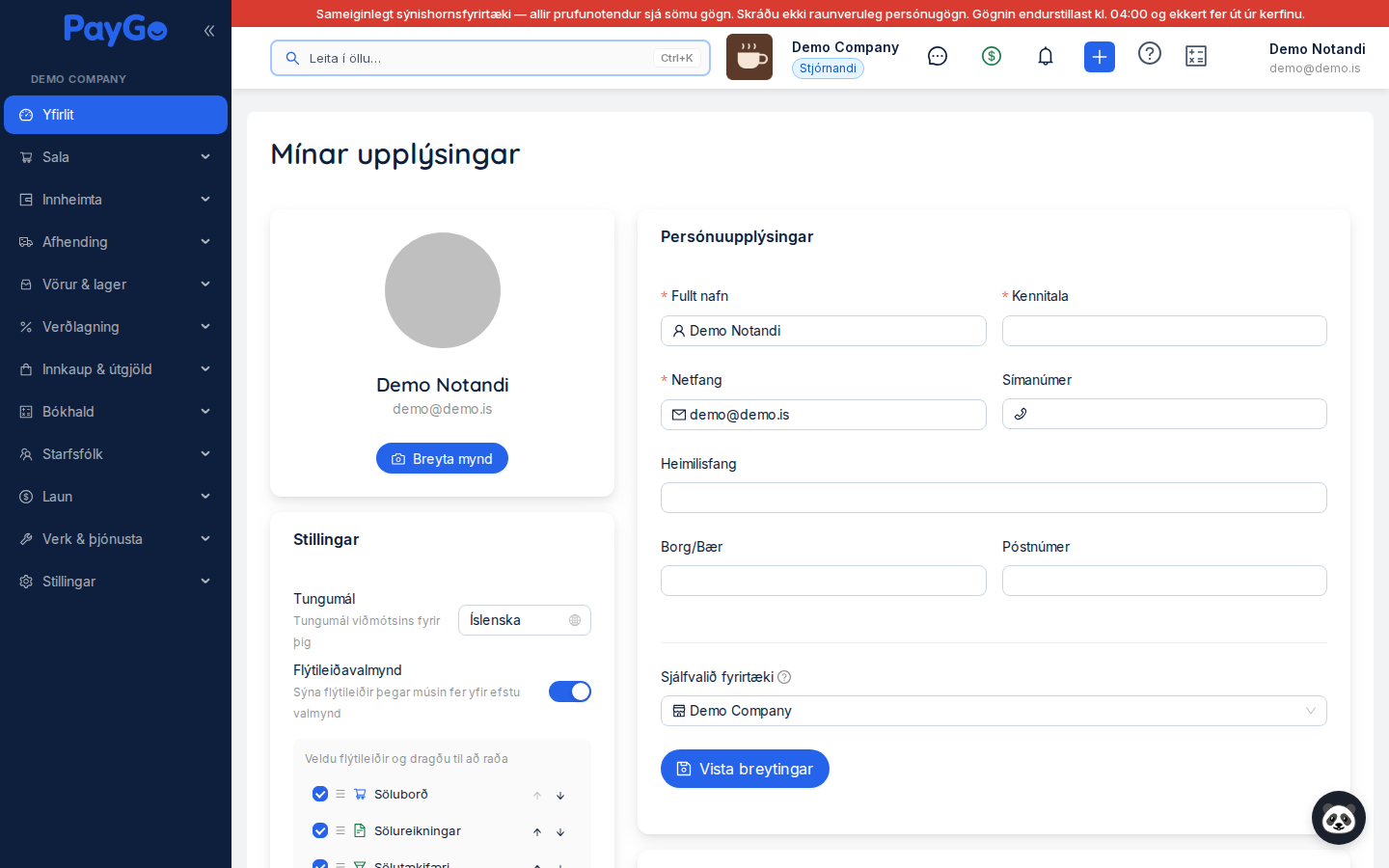
The My details page is your personal control panel in PayGo. Here you manage everything related to your own user account: profile picture, personal information, password, security settings (two-factor authentication and trusted devices), push notifications to devices, notifications for individual events, active login sessions and your full login history. Nothing on this page changes the company's settings — only your own user.
Heading and tab title: At the top of the page the heading reads “My details”, but the browser tab (the page title) shows the shorter name “Profile”.
How to get there: The page is at /dashboard/profile and is usually opened from the user menu in the top right-hand corner (where your profile picture is). If you click the gear icon that points to the quick links settings, the page may open and briefly highlight the “Settings” card to show you the right place.
Page layout: The content is split into two columns. The left column holds the profile picture, “Settings” (quick links menu and notifications), push devices, two-factor authentication and active sessions. The right column contains “Personal details” and “Change password”. At the bottom, across the full width, is “Login history”. On smaller screens the columns stack one below the other.
Profile picture
At the top of the left column is a large round profile picture (avatar). If no image has been uploaded, a generic user icon is shown. Below the picture you can see your full name and email address. To change the picture, click the blue Change photo button (with a camera icon). Only image files are allowed (image/*).
Select an image file from your device. Only images are allowed.
A window with the heading “Crop photo” opens. There you can move the image around, use the rotation slider to straighten it and the aspect ratio slider to set the shape of the crop. A guide grid is shown to make positioning easier.
Click “Save” to confirm the crop, or “Cancel” to exit without changes.
When the upload is complete, the confirmation “Image uploaded” appears and the page reloads automatically after a moment so the new picture is shown everywhere.
Settings — quick links menu
The Settings card begins with the Language selector (“Interface language for you”): you choose Icelandic or English and the choice is saved on your user. The card also controls the quick links menu that appears when the mouse hovers over the top menu. There is the Quick links menu switch with the explanation “Show quick links when hovering over the top menu”. When the switch is turned on, the confirmation “Quick links menu enabled” appears; when it is turned off, “Quick links menu disabled” appears. The setting is saved both in the browser and on your account so it follows you between devices.
When the quick links menu is turned on, a list appears below the switch with the heading “Choose quick links and drag to reorder”. There you use checkboxes to choose which quick links are active, drag them with the mouse to change their order, or use the up/down arrows on each row. Active quick links are at the top in full colour; inactive ones are dimmed at the bottom of the list. Only quick links for parts of the system that you can also see in the sidebar are offered — parts you have no access to (because of permissions, role or the company’s add-ons) appear neither here nor in the quick links menu, so a technician, for example, sees fewer options than an accountant. The table below lists every possible option.
| Quick link | Description |
|---|---|
| Sales board | Overview of sales and sales transactions |
| Leads | Leads / potential deals in the sales pipeline |
| Customers | Customer register |
| Suppliers | Register of suppliers / creditors |
| Expense entry | Entering expenses |
| Journal | Accounting journal |
| Sales invoices | Issued sales invoices |
| Sales orders | Sales orders |
| Quotes | Quotes to customers |
| Deliveries | Deliveries / delivery notes |
| Products | Product and inventory register |
| Purchasing | Purchase orders |
| Helpdesk | Support tickets (helpdesk) |
| Task board | Task boards / Kanban |
| Work orders | Work orders (FSM) |
| Schedule | Work order schedule |
Pinned task boards: If you have pinned a particular task board, it also appears in the quick links list with a pushpin icon and the board's colour. Next to it is a small red delete button with the tooltip “Remove from quick links”. When you remove a board, the confirmation “Board removed from quick links” appears. Pinned boards are only shown when they belong to the company you are logged in to.
Notifications for the company
At the bottom of the “Settings” card (below a divider) is a section with a bell icon and the heading “Notifications for {company name}” (where the name of the company you are logged in to replaces {company name}). Here you control your own personal notifications for each event in PayGo. This section is not shown to super administrators, nor when no events are available for the company.
Events are grouped by category. Each category has its own subheading, and below it are the individual events, which can be turned on or off.
| Category | Display name |
|---|---|
| orders | Orders |
| helpdesk | Helpdesk |
| inventory | Inventory |
| system | System |
| sales | Sales |
| accounting | Accounting |
| procurement | Purchasing |
| payroll | Payroll |
| leave | Time off |
| timeClock | Time clock |
| ideas | Idea bank |
| portal | My pages |
| boards | Task board |
Each event has up to three small buttons that you turn on and off individually:
| Button | Icon | What it does |
|---|---|---|
| Push notification | Bell | Sends a push notification to the PayGo app on your phone. Turns green when active. |
| Envelope | Sends a notification by email. Turns blue when active. | |
| SMS notification | Message | Sends an SMS message. Only shown if SMS is enabled for the company AND you have a valid Icelandic mobile number. Turns dark grey when active. Tooltip: “SMS notification (SMS messages cost extra)”. |
Push notifications — devices
The Push notifications — devices card (with a phone icon) shows all devices registered to receive push notifications from the PayGo app. The table has the following columns:
| Column | Description |
|---|---|
| Device | The device name together with the operating system (iOS or Android) and the app version number (e.g. “iOS — v1.2.3”). If the name is missing, “Unknown device” is shown. |
| Status | A green “Active” tag or a grey “Inactive” tag. |
| Last used | The date the device was last used (Icelandic format). |
In the top corner of the card is the Send test notification button (only shown if at least one device is registered). When you click it, a test push is sent to your devices and the confirmation “Test notification sent” appears. To remove a device, click the red delete button at the end of the row. A confirmation dialog then appears with the question “Remove device?” and the explanation “The device will no longer receive push notifications”. Once a device has been removed, “Device removed” appears.
If no devices are registered, the following text is shown: “No devices registered. Log in to the PayGo app on your phone to enable push notifications.”
Two-factor authentication (MFA)
The Two-factor authentication card (with a security icon) adds an extra layer of security to your account. The explanation on the card reads: “Two-factor authentication adds extra security by requiring a code from an authenticator app when you log in.” At the top you can see the Status, which is either “Enabled” (green) or “Disabled”.
When authentication is disabled, a blue Enable button is shown, which opens a setup window. When it is enabled, a red Disable button is shown.
Enabling two-factor authentication
The setup window is called “Enable two-factor authentication” and guides you through three steps shown at the top of the window: Start → Scan QR → Confirm.
PayGo prepares the setup (“Preparing setup…”) and generates a secret key and a QR code.
Open your authenticator app (e.g. Google Authenticator, Microsoft Authenticator or Duo) and scan the QR code that is shown. If you cannot scan it, click “Can't scan? Enter the secret key manually” to copy the secret key and enter it manually (the “Copy” button gives the confirmation “Secret key copied”).
Enter the 6-digit code from the app in the six boxes. The code is confirmed automatically once six digits have been entered, or you can click “Confirm”. If the code is wrong, the boxes are cleared and you try again.
A green tick appears with the text “Two-factor authentication enabled!” and the explanation “You will now need to enter a code from your authenticator app when you log in.” The window closes automatically.
Trusted devices
When two-factor authentication is enabled, the section “Trusted devices (N)” (N = number of devices) appears at the bottom of the card. These are devices where you ticked “Trust this device” when logging in and therefore do not need to enter a code every time. The table shows the columns Device (name, or “Unknown device”) and Last used (date). Each row has a red delete button to Remove a single device, and in the top corner is the Remove all button.
When you remove a single device, a confirmation appears: “Are you sure you want to remove this device? You will need to enter a code the next time you log in on this device.” When you remove all of them, it reads: “Are you sure you want to remove all trusted devices? You will need to enter a code next time on all devices.” If no trusted devices are registered, it reads: “No trusted devices. Tick "Trust this device" the next time you log in.”
Disabling two-factor authentication
When you click Disable, a window opens with the heading “Disable two-factor authentication”. For security, you need to confirm your identity. The window requires two fields:
| Field | Description | Required |
|---|---|---|
| Password | The current password for your account. | Yes |
| Authenticator app code | The 6-digit code from your authenticator app. Must be exactly 6 digits. | Yes |
Click the red Disable button to confirm (or “Cancel”). When the action succeeds, “Two-factor authentication disabled” appears and the list of trusted devices is cleared.
Active sessions
The Active sessions card (with a screen icon) shows all your open login sessions — that is, the devices and browsers where you are currently logged in. Each session is shown as a row with a device icon (phone or screen icon depending on type), the device name, the IP address and the text “Last active: ...” (relative time, e.g. “5 min ago”, “2 h ago” or “Yesterday”).
The current session (the one you are using now) is highlighted with a green border and the tag “This session”. It cannot be revoked. Every other session has a red revoke button; if you click it, the confirmation “Revoke session — Are you sure? The user will be logged out.” appears, followed by “Session revoked”. In the top corner of the card is the Revoke all others button (only shown if there are sessions other than the current one), which logs you out everywhere except on the current device. A message such as “3 sessions revoked” then appears.
Personal details
The Personal details card in the right column holds your basic details. Fill in the form and click Save changes at the bottom. When the save succeeds, “Details updated” appears.
| Field | Description | Required |
|---|---|---|
| Full name | Your full name. PayGo automatically splits it into first name and last name when saving. | Yes |
| Kennitala | Your kennitala (national ID). | Yes |
| Your email address — must be a valid email address. | Yes | |
| Phone number | Mobile number. A valid Icelandic mobile number enables SMS notifications (see above). | No |
| Address | Street and house number. | No |
| City/Town | Municipality or locality. | No |
| Postcode | Your postcode. | No |
| Default company | The company you are taken to automatically when you log in. Optional — can be cleared. | No |
Change password
The Change password card lets you set a new password. Fill in all three fields and click Update password. When it succeeds, “Password updated” appears and the fields are cleared.
| Field | Description | Required |
|---|---|---|
| Current password | The password you use today. | Yes |
| New password | The new password you want to start using. | Yes |
| Confirm new password | The same password again for confirmation. Must match “New password”. | Yes |
Login history
At the bottom of the page, across the full width, is the Login history card (with a clock icon). It shows a table of all login attempts on your account — both successful and failed — which is a useful security tool for keeping an eye on unexpected attempts.
| Column | Description |
|---|---|
| Date | Date and time of the login (e.g. “14.07.2026 at 09:32”). |
| IP address | The IP address the login came from, or “-” if unknown. |
| Device | Device type read from the browser information (e.g. iPhone, Android, Mobile phone, Windows computer, Mac computer, Linux computer) together with the browser in brackets (Chrome, Firefox, Safari, Edge) and a phone or screen icon. |
| Status | A green “Success” with a tick, or a red icon with the reason if the login failed (e.g. wrong password). |
| MFA | A security icon if two-factor authentication was used. If the login came from a trusted device, “(trusted)” is also shown. Otherwise “-”. |
The table is paginated (10 entries per page) and the total is shown at the bottom: “Total N logins”. Use the pagination to browse older entries.